Dynamic Canvas
Arky provides a new editing interface that embeds Markdown document structure into the canvas. We call this the Dynamic Canvas. You can switch between Canvas view and Document view while continuing your work.
Canvas view
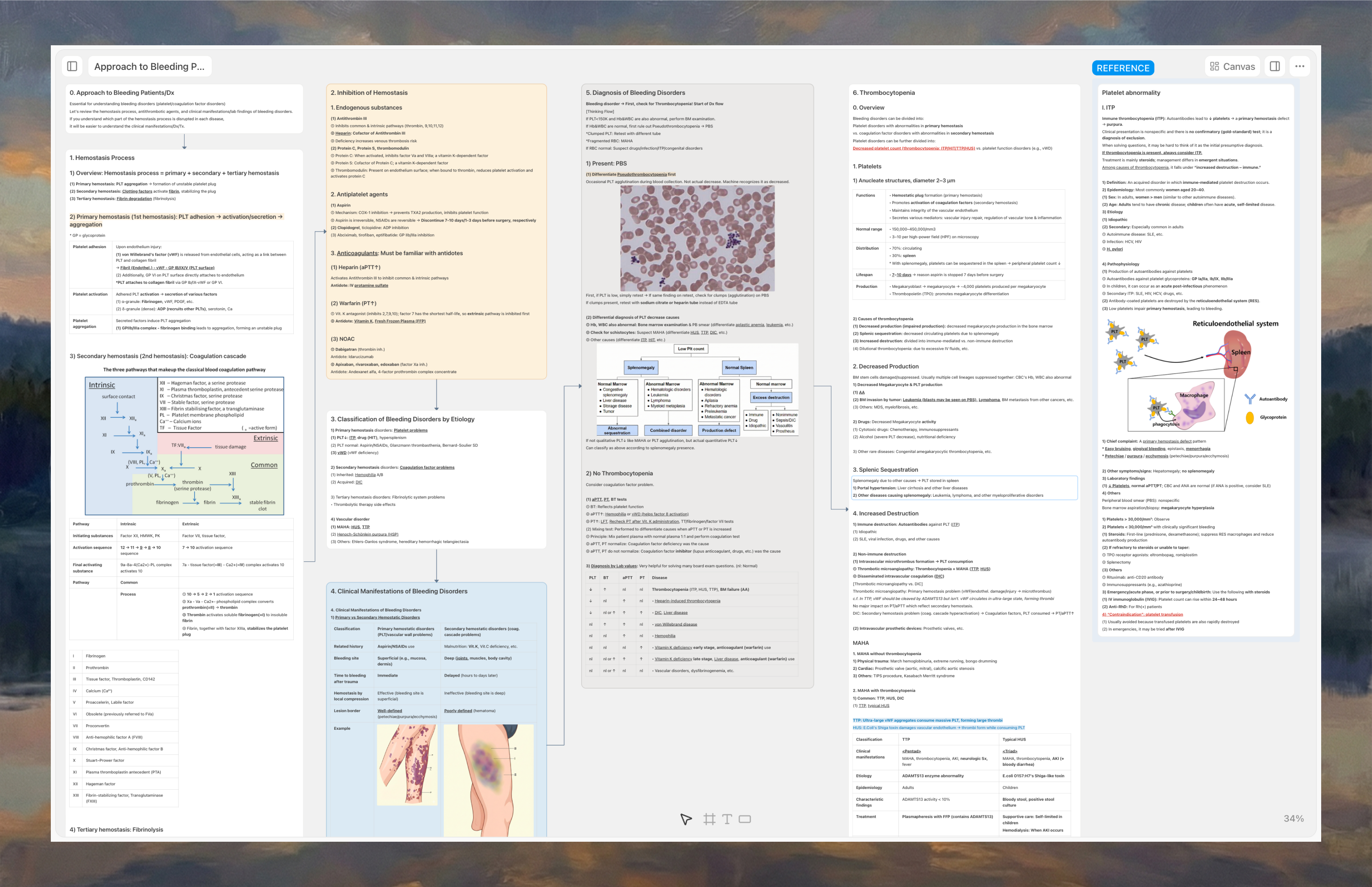
The canvas view works similarly to Figma or Miro. This feels natural — it mirrors how we actually think. Like a blank sketchbook where you can place thoughts anywhere. Arrange text, images, and blocks freely. Wrap them into Shells to create hierarchy. Structure emerges naturally.
Canvas Tools
You can pick a tool from the select panel or use shortcuts.
Select (V)
When you want to move multiple Shells or Block Groups—whether you're dragging them into a Shell or taking them out—you'll need to use the Select mode.
Press the V key or click the Pointer icon in the select panel at the bottom center of the screen to enter Select mode.
Text (T)
To write a paragraph, use a Text Block. You can enter Text Mode by pressing the T key or clicking the text icon at the bottom center of the canvas. Just click on the canvas, and a new Text Block will appear.
While writing in a Text Block, press the / key to open the Slash Command menu. It works the same way on the canvas, too.
If a Text Block is left empty, it will be automatically removed.
While writing, press ⌘ + Enter to split a block group into two. (or use Ctrl + Enter on Windows)
Shell (S)
If you want to create a new Shell, press the S key or click the Shell icon in the Select panel at the bottom center of the screen to enter Shell Mode. Once you're in Shell Mode, simply click on the canvas to create a new Shell.
Visualize your thoughts
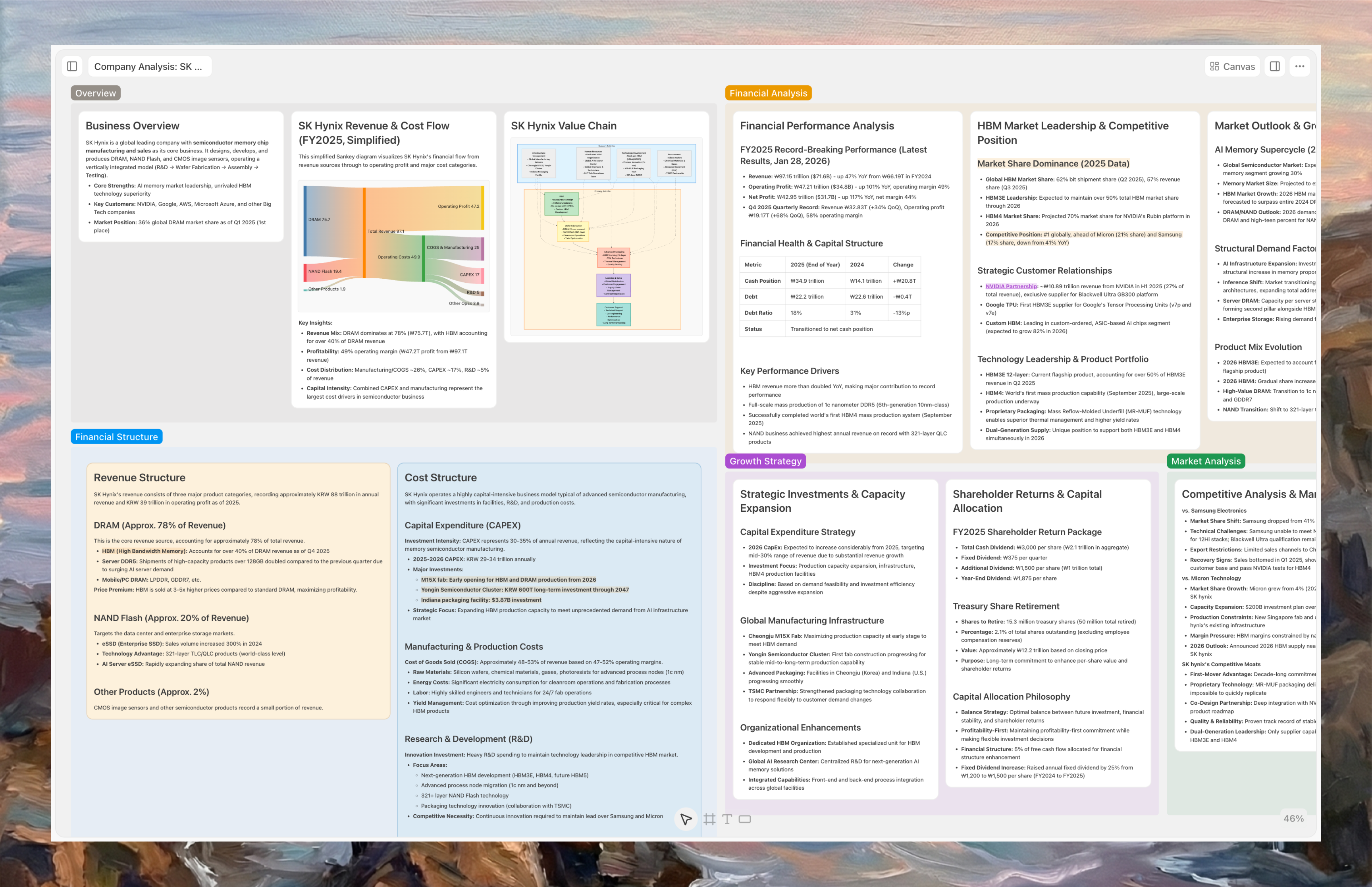
Use Shells, Sections, and Arrows on the canvas to organize thoughts more clearly. Share it with others to provide visual context and help them understand your ideas better.
Drag & Drop
You can drag and move Shells or Block Groups to rearrange their position, or nest them inside another Shell to build a hierarchy.
Alignments
You can freely arrange elements on the canvas. While you can move them by drag-and-drop, here are easier options:
- Select multiple elements — hold
Shiftto select multiple items, or drag to select an area. - Once selected, an alignment toolbar pops up. Use it to space elements evenly—vertically or horizontally—or snap them into alignment: left, top, right.
- Or use keyboard shortcuts for faster alignment:
- Align Left:
⌥+A(orAlt+Afor Windows) - Align Top:
⌥+W(orAlt+Wfor Windows) - Align Right:
⌥+D(orAlt+Dfor Windows) - Distribute Horizontally:
⌥+H(orAlt+Hfor Windows) - Distribute Vertically:
⌥+V(orAlt+Vfor Windows)
- Align Left:
Document view
Document view is primarily used for reading. This feels like Notion or Obsidian.
You can write from top to bottom in a clean, linear flow. With this flow, it's ideal when ideas have come together into a complete document, or when you need to write linearly on a focused topic. Everything from the Canvas view is shown here in the same Shell hierarchy — just in a document-style format.
You can also export this document structure as Markdown, Word, or PDF files.