Concepts
In this section, we'll take a quick look at the key concepts behind how Arky organizes information.
Workspace
A workspace is a place where you can edit and store knowledge—on your own or with a team.
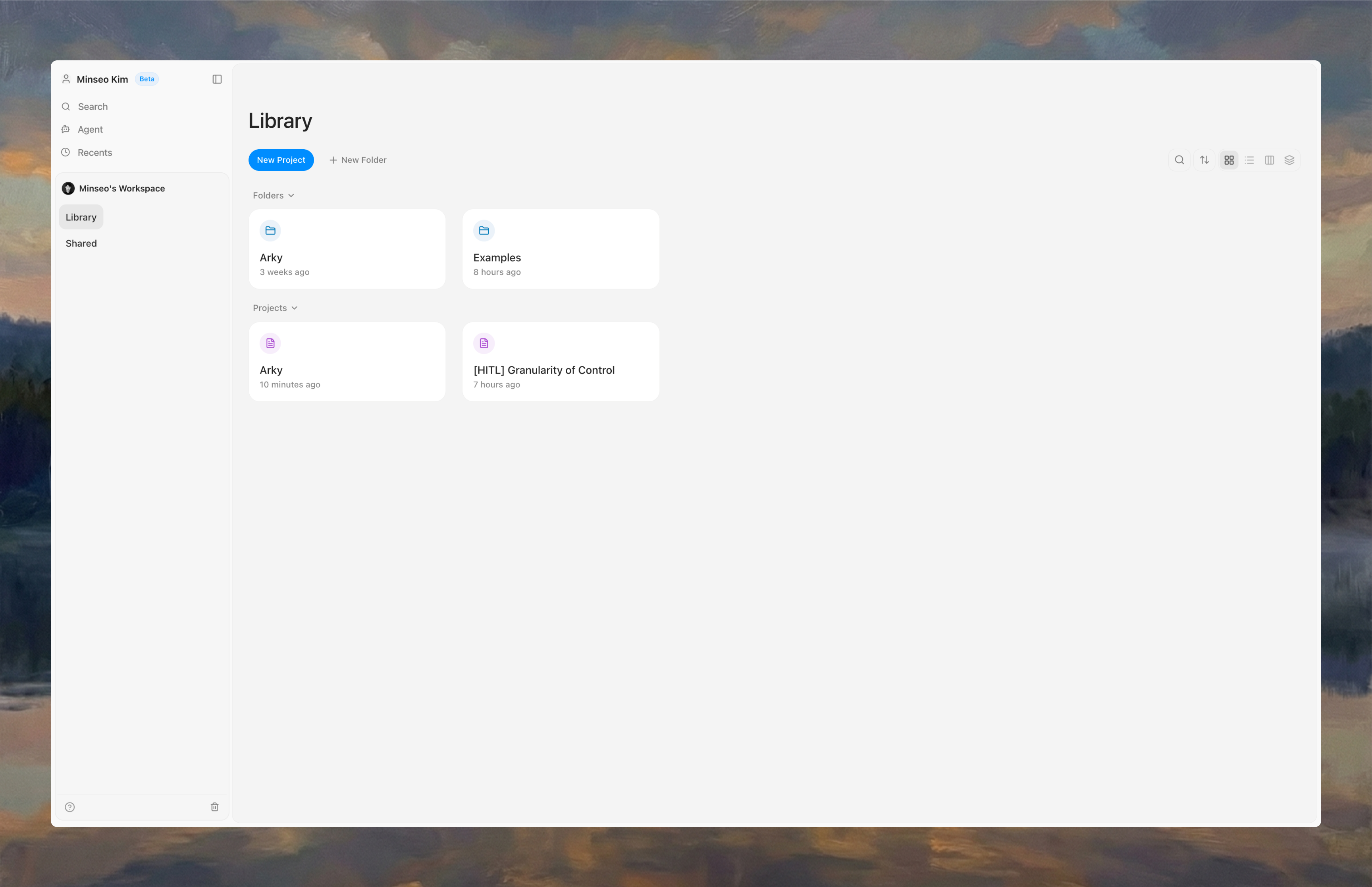
Folder Structure
You can organize your Projects into folders, and nest those folders as deep as you need.
Inside a folder, you can switch between grid, list, and column views to browse your items however suits you best.
Support for adding custom properties to items and managing them as a structured database is coming soon.
Project
A project is a collection of knowledge grouped around a specific purpose.
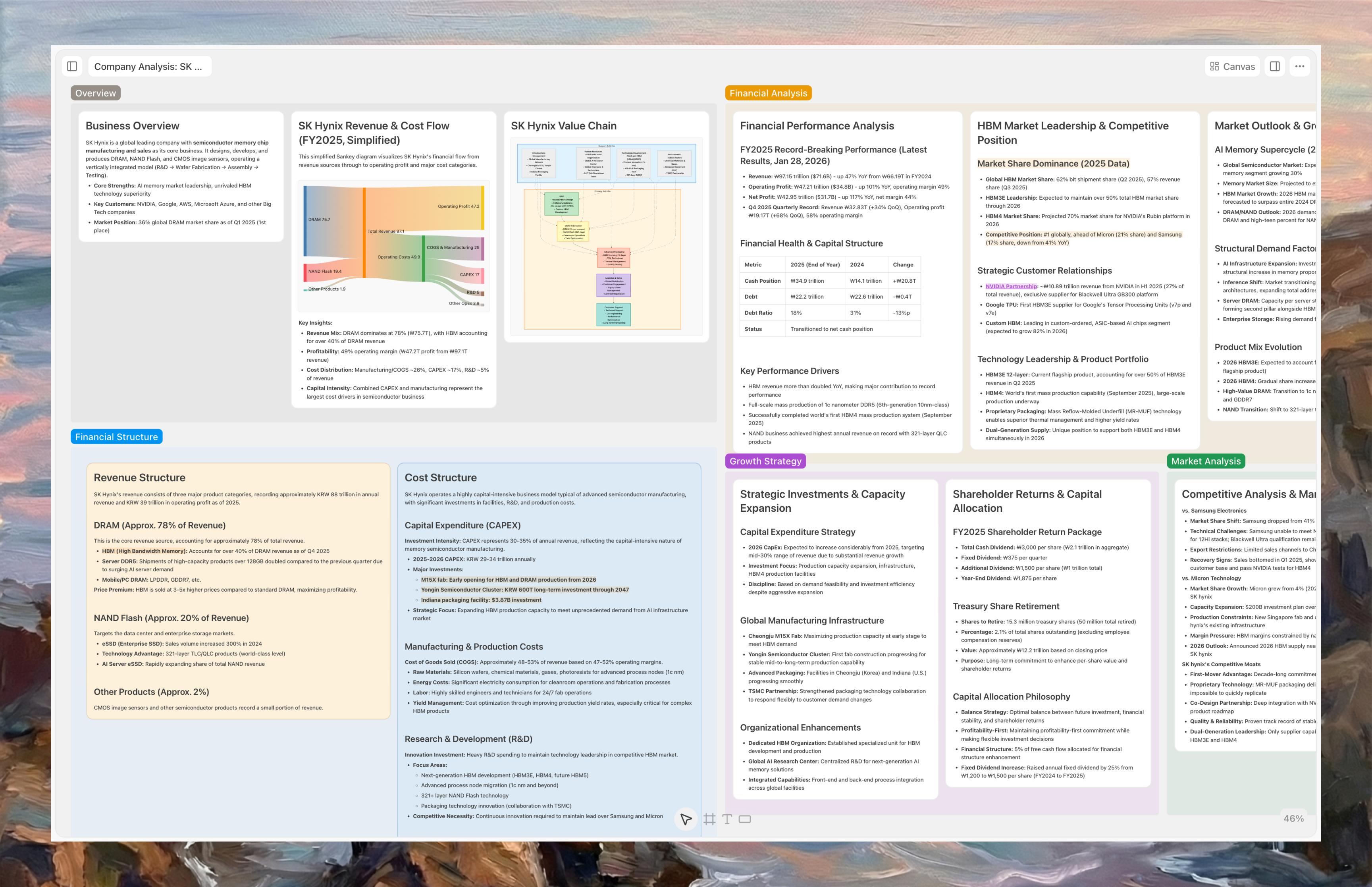
It supports a dynamic canvas, and most of your editing happens here.
Outline tab
The left sidebar has two tabs: Outline and Details. Let's start with Outline.
- The Outline tab displays the shell hierarchies within this project.
- The order reflects how they're arranged in Document view, and deeper indentation indicates deeper hierarchy levels.
- You can drag and drop to reorder items in Document view or restructure the hierarchy.
Clicking a Shell name in the Outline tab jumps to its position on the canvas. To focus into the Shell, click the arrow (→) on its right side.
- To work exclusively with the contents of a specific Shell, click the arrow on its right in the Outline.
- To return to the top level, click the project name at the top of the Outline tab, or use the navigation path in the top-left corner.
Details tab
The Details tab shows the contents inside the currently focused Shell. Clicking any block or Shell navigates you to its location on the canvas.
You can also drag and drop Shells or blocks within the Details tab to reorder how they're arranged inside a Shell or in Document view.