GPT-6とClaude Opus 5.5に対応
AIモデルの選択肢が広がりました
ArkyチャットにGPT-6 Sol・LunaとClaude Opus 5.5を追加しました。従来のGPT-6 Astraとあわせて、モデル選択メニューから使いたいモデルを選べます。
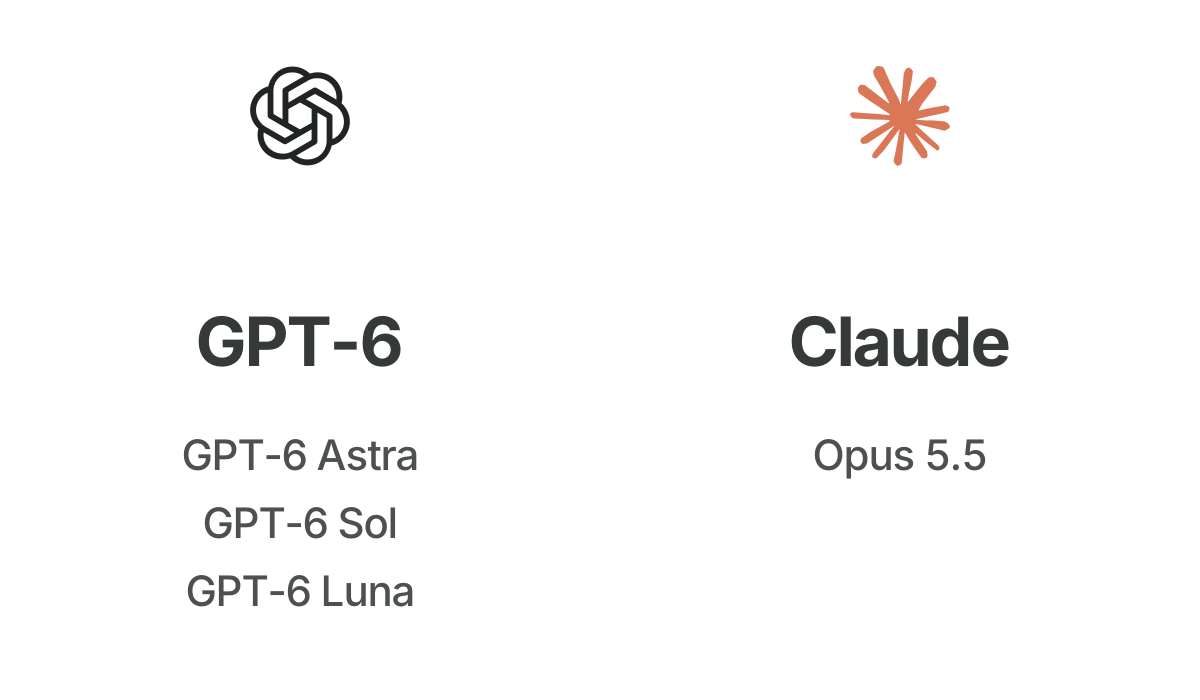
ArkyチャットにGPT-6 Sol・LunaとClaude Opus 5.5を追加しました。従来のGPT-6 Astraとあわせて、モデル選択メニューから使いたいモデルを選べます。
ドキュメントの強調、資料を読むこと、ブロックを動かすことといった基本の操作を磨きました。AIもチャットだけにとどまらず、ドキュメントやキャンバスで直接一緒に作業します。
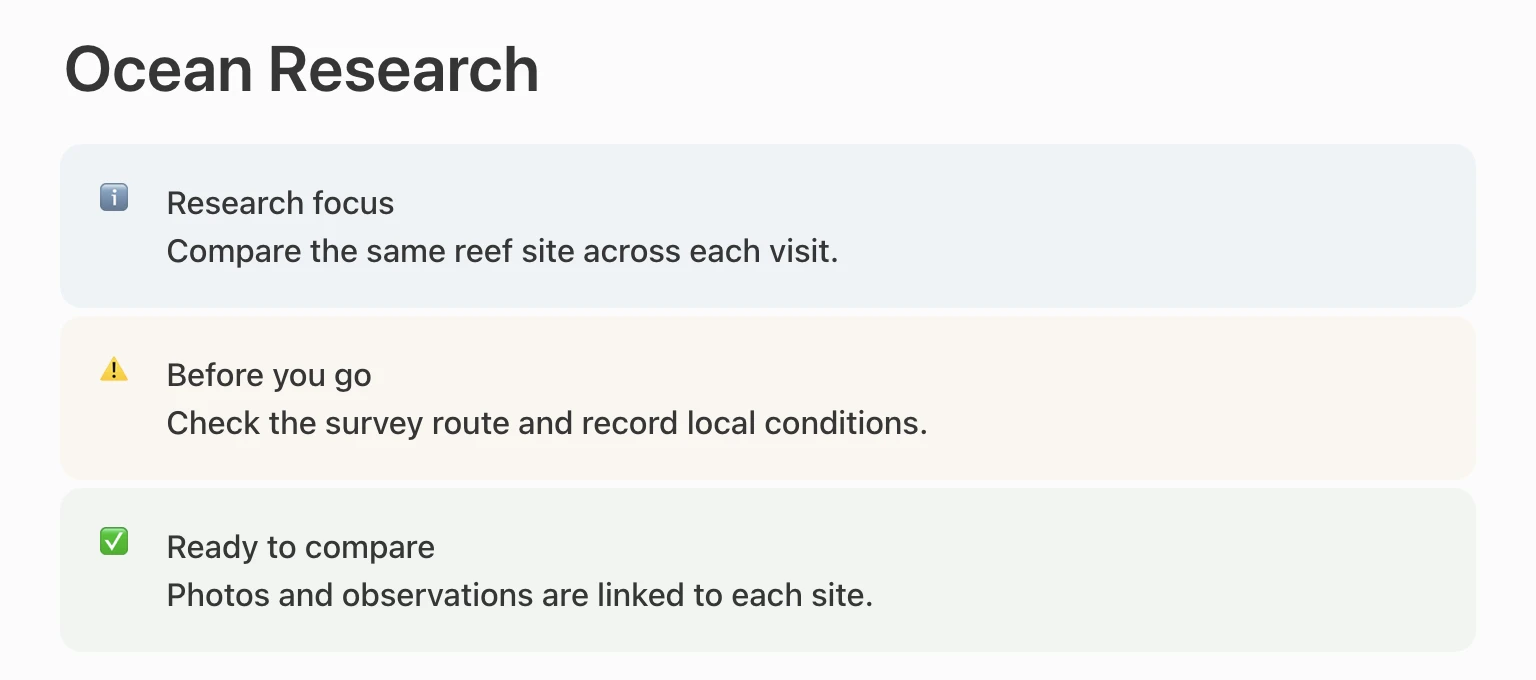
コールアウトブロックの色とアイコンを選び、重要な情報を目立たせられます。選択したテキストにURLを直接貼り付けるリンク編集も簡単になりました。
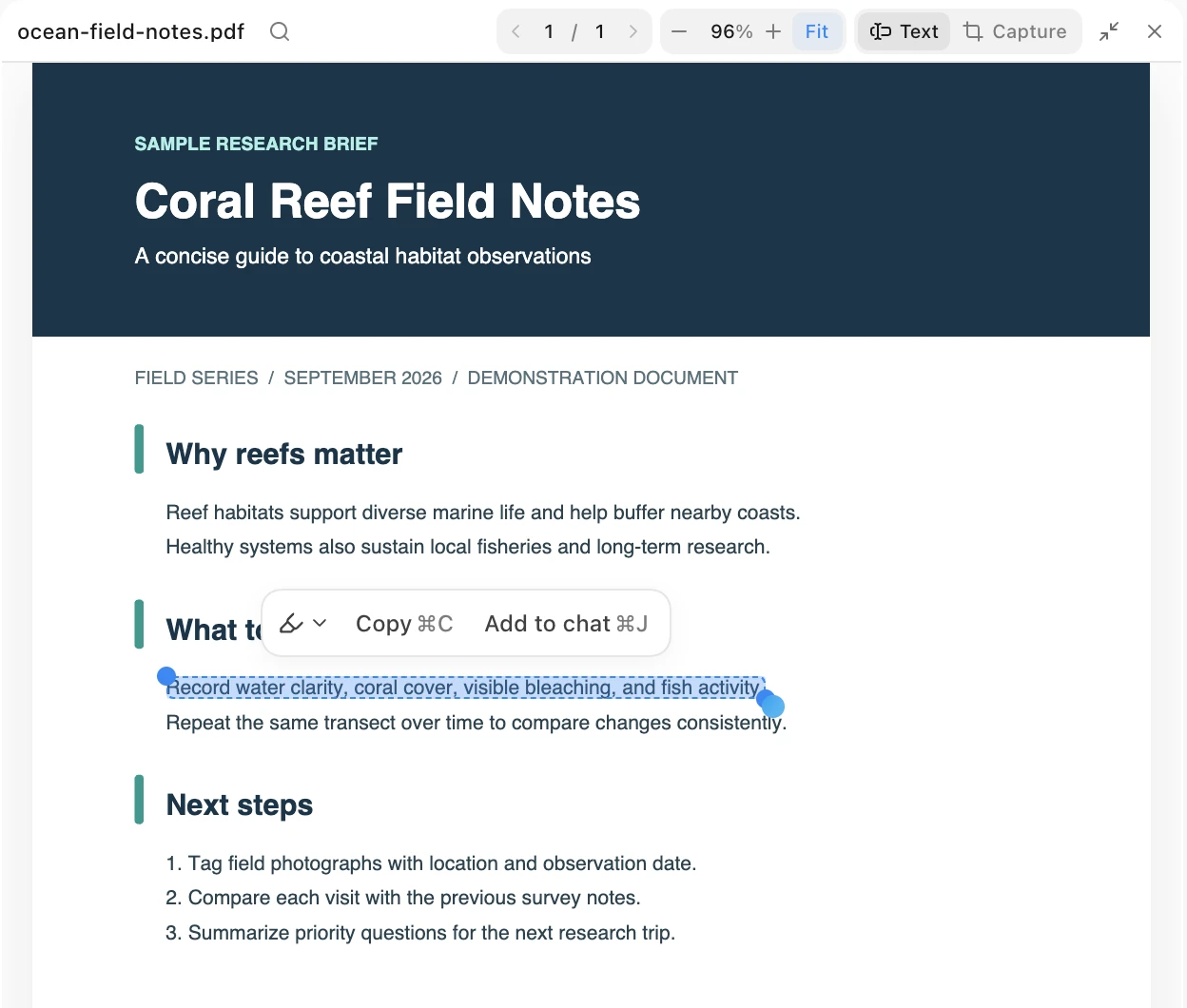
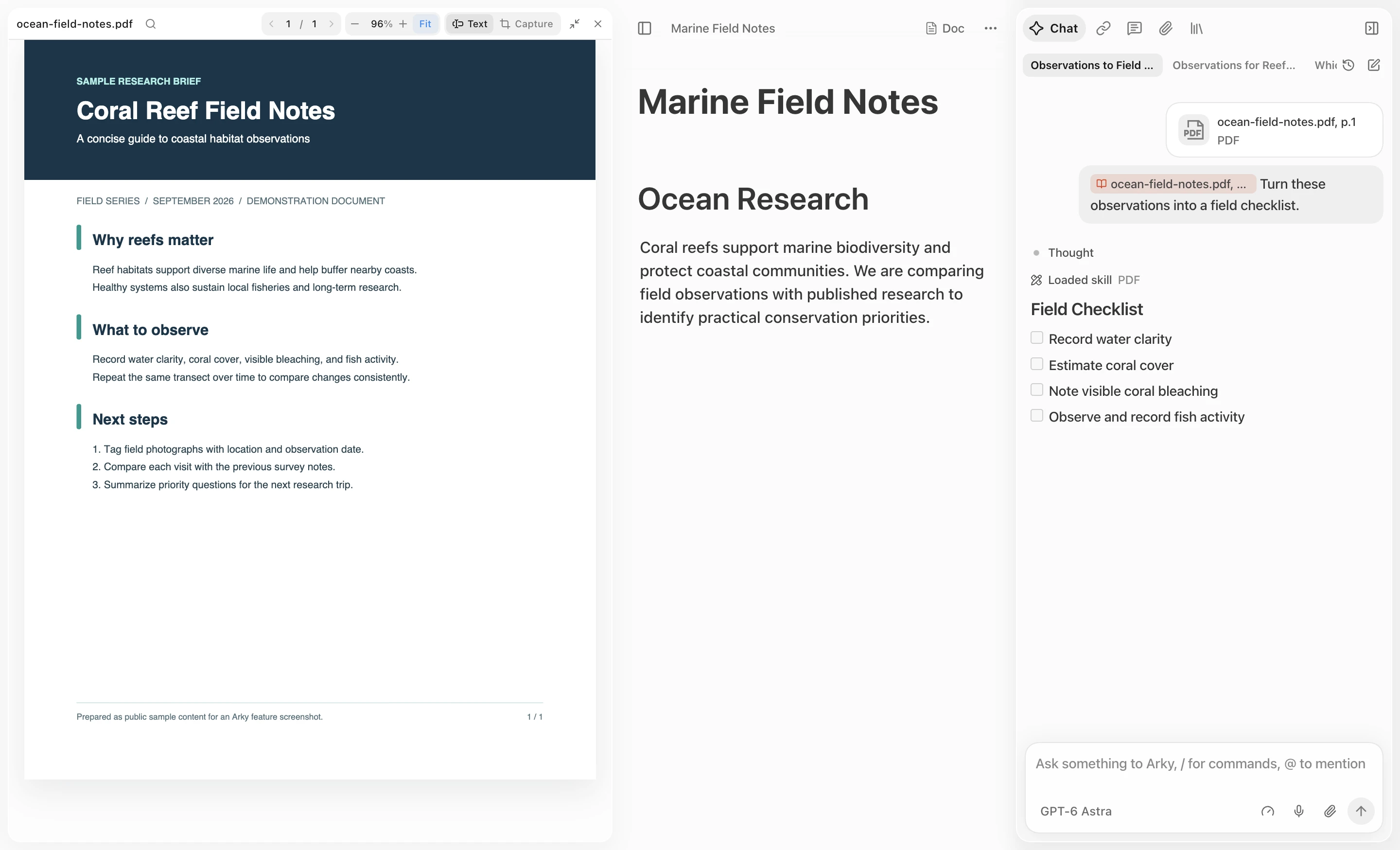
PDFから必要な文章をより正確に選び、ドキュメントやAIチャットに取り込めます。更新後も最後に読んでいたページが開き、リンクや表も失わずに引用できます。
複数のブロックを選び、置き場所をプレビューしながら兄弟ブロックの間へ直接並べ替えられます。Shiftを押してドラッグすると一方向にだけ動かせ、複製したブロックは元の近くに自然に配置されます。
チャット入力欄に音声入力を追加しました。話している間に波形と文字起こしを区間ごとに確認でき、いつでも停止したり、失敗した認識を再試行したりできます。
個人のChatGPT・Claudeサブスクリプションを接続する流れと、モデル選択を分かりやすくしました。AIが書いた数式も、チャット内で読みやすく表示されます。
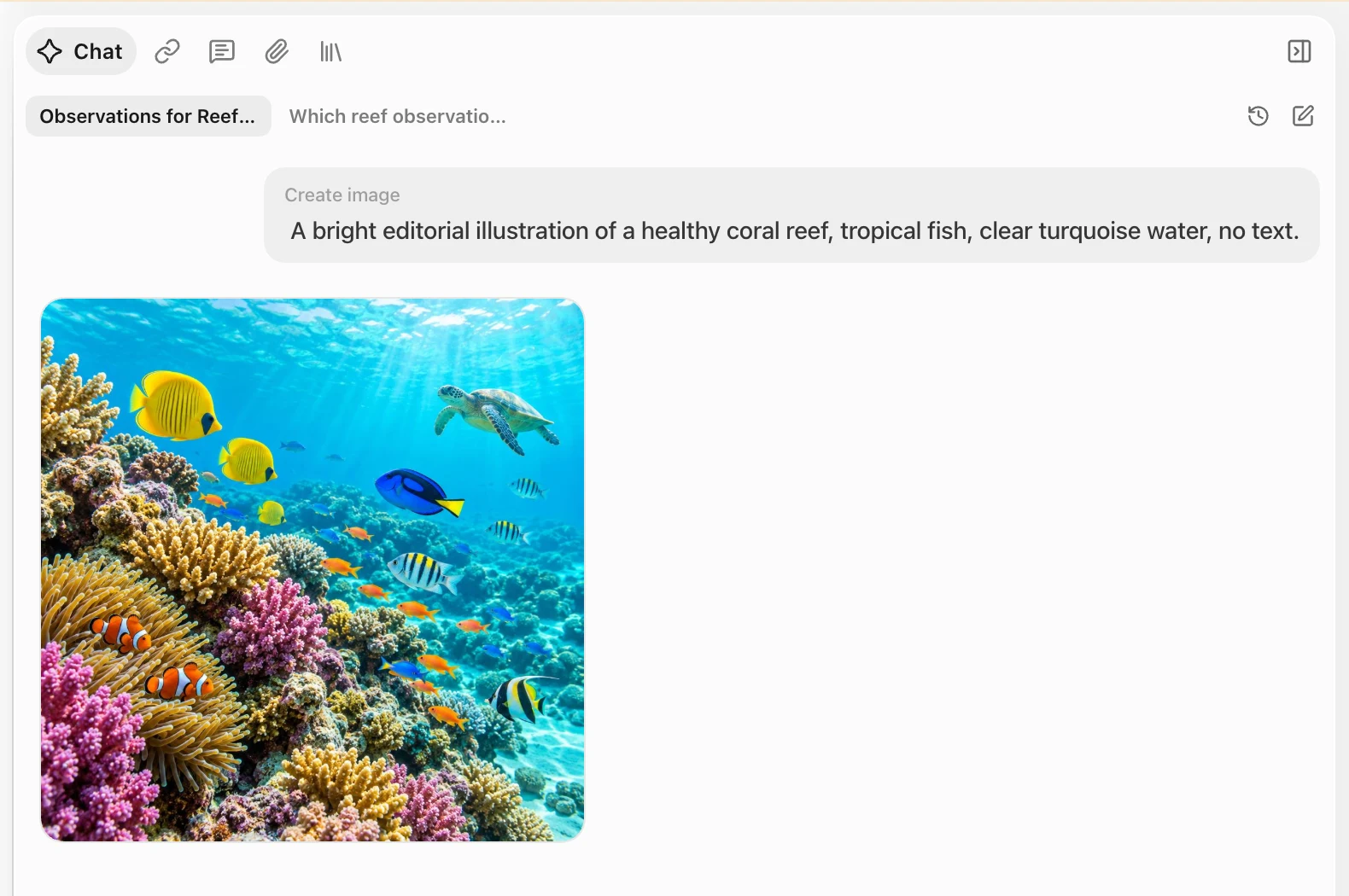
画像生成モデルをGPT Image 2.5ベースに更新しました。AIチャットでより速く、安定して画像を作成し、生成過程と結果を確認したあと、ギャラリーからコピーしたり次の作業に活用したりできます。
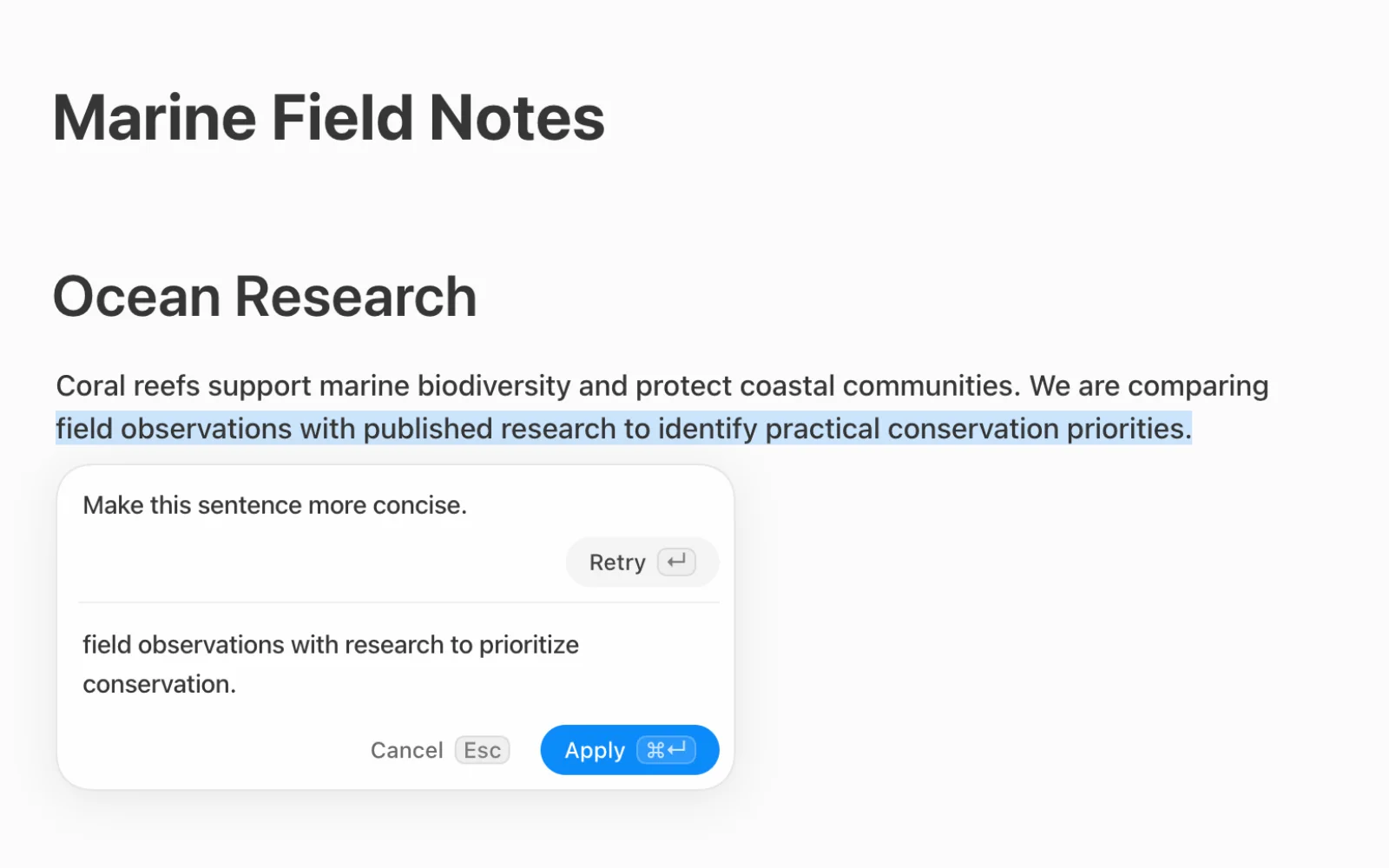
ドキュメントやキャンバスで文章や表のセルを選ぶと、その場でAIに編集を依頼できます。文章を整える、形式を変える、内容を広げる、構造を組み替えるといった作業に対応します。
AIの作業過程と結果をその場で確認して適用できるため、チャットを開いてコピー&ペーストする流れが短くなります。選択した内容について、そのまま説明を求めることもできます。
回答の生成中にも次の指示を残せ、急ぎのメッセージはすぐ送れます。チャットを閉じて開き直したときや接続が一時的に不安定なときも、保留中の依頼と回答の流れをより安定して続けられます。
記録できる資料の幅を広げ、どこにいても安心して作業を続けられるようにしました。
新しいビデオブロックで、動画をドキュメントに直接追加できます。大きなファイルも、アップロードの流れを失わずに処理できます。
モバイルでは、プロジェクトとドキュメントの構造をすばやく見渡し、書いた内容を読んで確認できます。メールのマジックリンクでログインすれば、パスワードを入力せずにアプリへ直接戻れます。
更新や一時的な接続切れの後も、書いていた内容を続けて送れます。共同編集のドキュメントもより速く開きます。
AIを選んで回答を受け取ること、キャンバスで考えを整理すること、参考資料をそばに置くことを、より短い流れにしました。
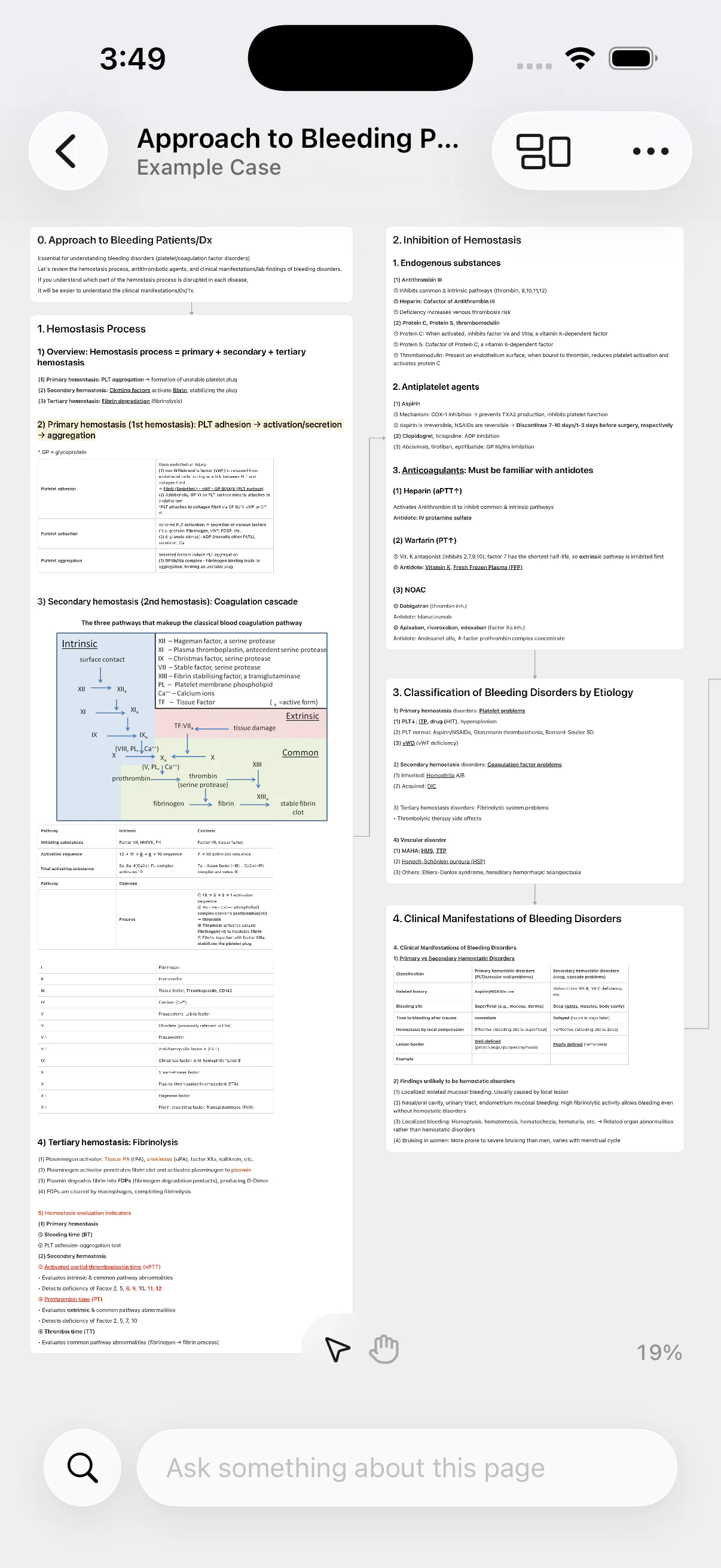
最新のGPT-5.6モデル群を追加し、接続したプロバイダーごとにモデルを見られるようになりました。複数のサブスクリプションを接続していても、使いたいモデルを選びやすくなります。
AIが回答する言語も選べます。普段とは異なる言語の資料を読んでいても、好みの言語で結果を受け取れます。
マインドマップ表示に切り替えると、文書のShell階層がつながったカードとして表示されます。カードを選択して構造を確認し、ダブルクリックして内容を編集できます。
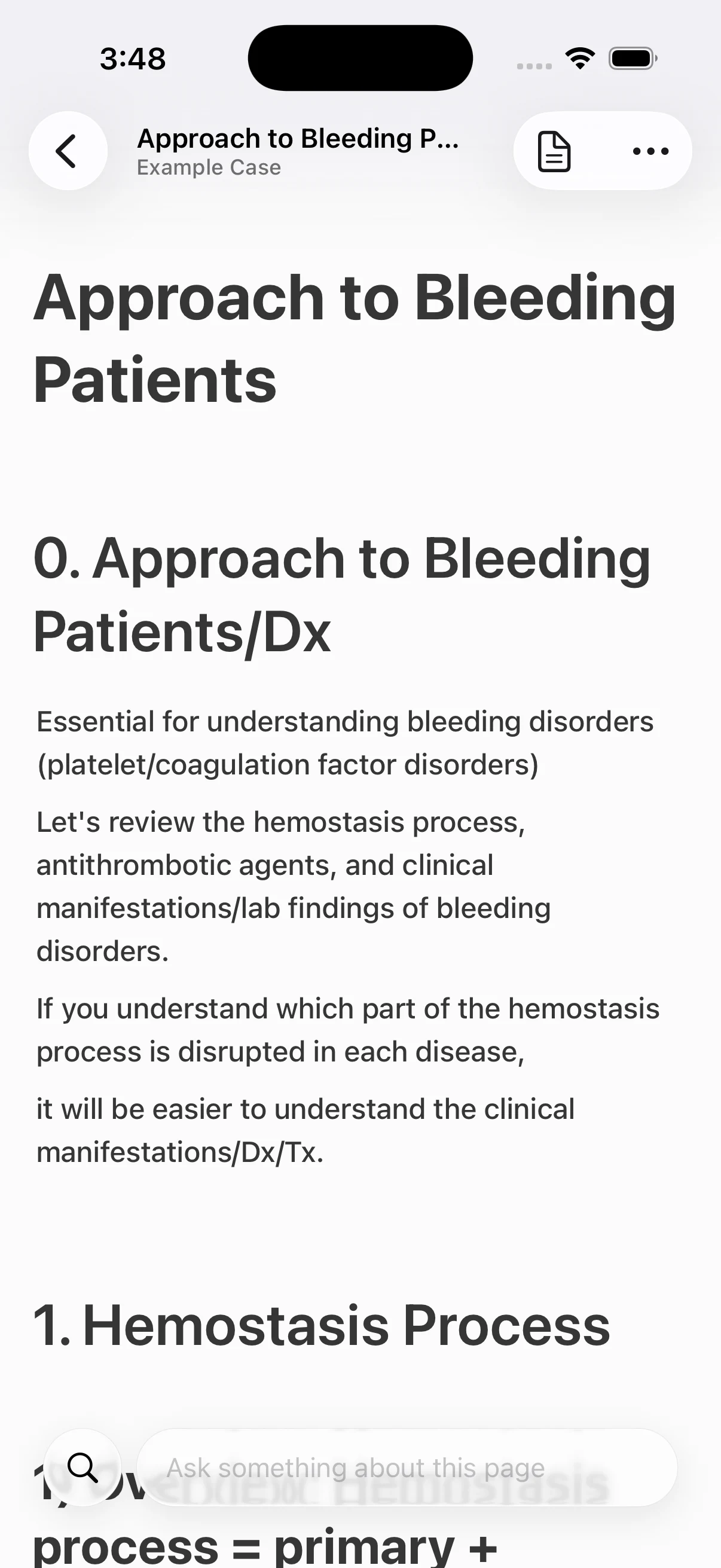
Markdownファイルを添付すると、タイトルとドキュメント構造を保ったままサイドビューアで開けます。長い文書でも必要な箇所を探し、原文を見ながら作業を続けられます。
選択した文章をドキュメント、キャンバス、チャットに取り込むと、原文へ戻れる引用が付きます。資料をコピーしてから出典を探し直す手間を減らします。
Arkyに入り、資料を読み、必要な情報を次の作業へつなげる日常の流れを磨きました。
パスワードの代わりに、メールで受け取ったリンクからArkyへ直接ログインできます。デスクトップアプリでも、リンクを開けば見ていた作業へ自然に戻れます。
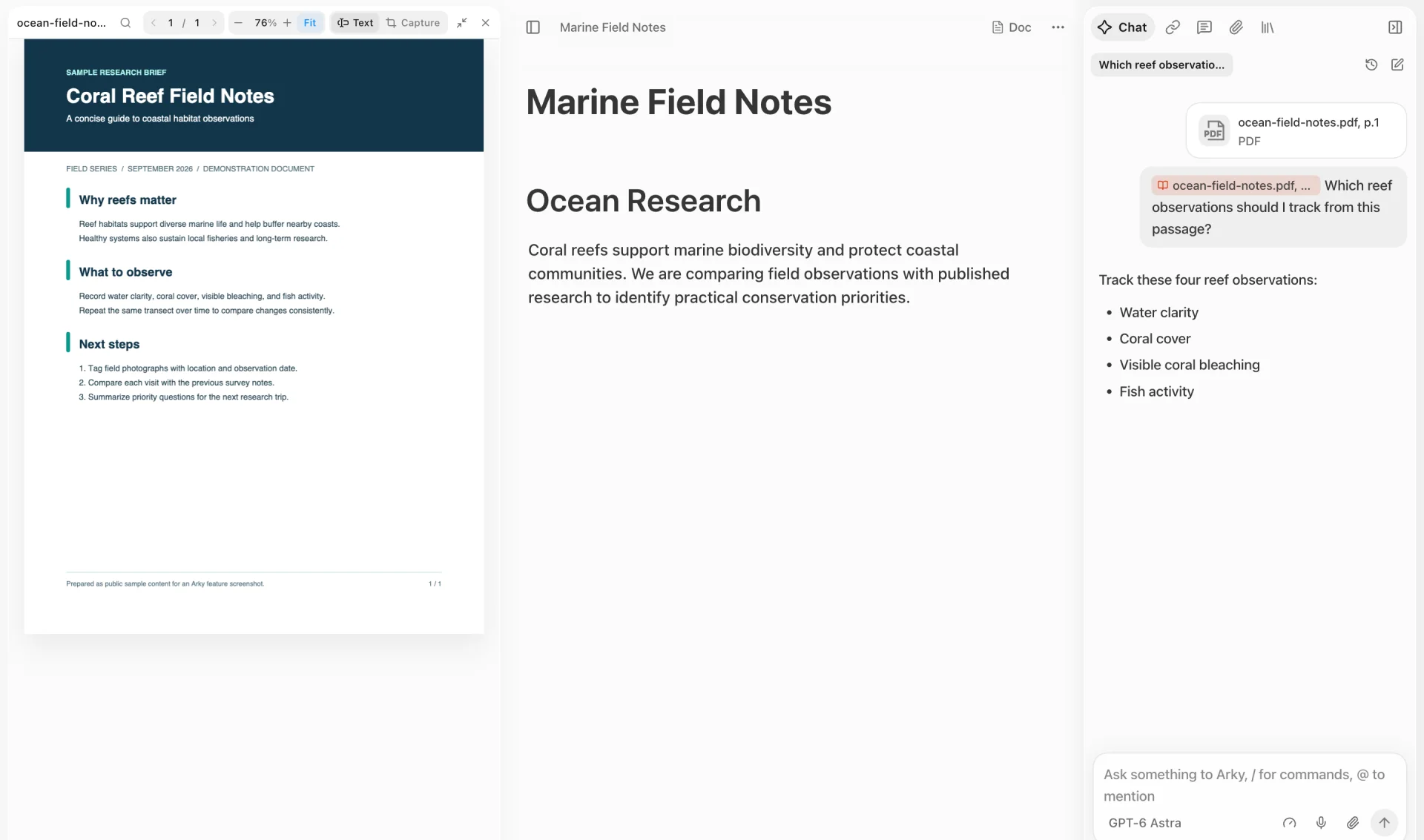
プロジェクトに添付したPDFを、そのままAIチャットの資料として使えます。必要な箇所を見ながら質問し、回答内の引用から原文へ戻れます。
1.0に向けてゼロから再構築して以来、私たちは共同作業のあり方と、AIがより深く取り組める仕組みに注力してきました。キャンバスやドキュメントのどこにでもコメントできるようになり、AIはバックグラウンドでより大きな仕事を進められます。
キャンバスでは、shell、box、sectionの上に直接コメントを置けます。ブロックにカーソルを合わせるとコメント対象が表示され、クリックすると右上にピンが固定されます。空白部分をクリックすれば、その場所にコメントを固定できます。
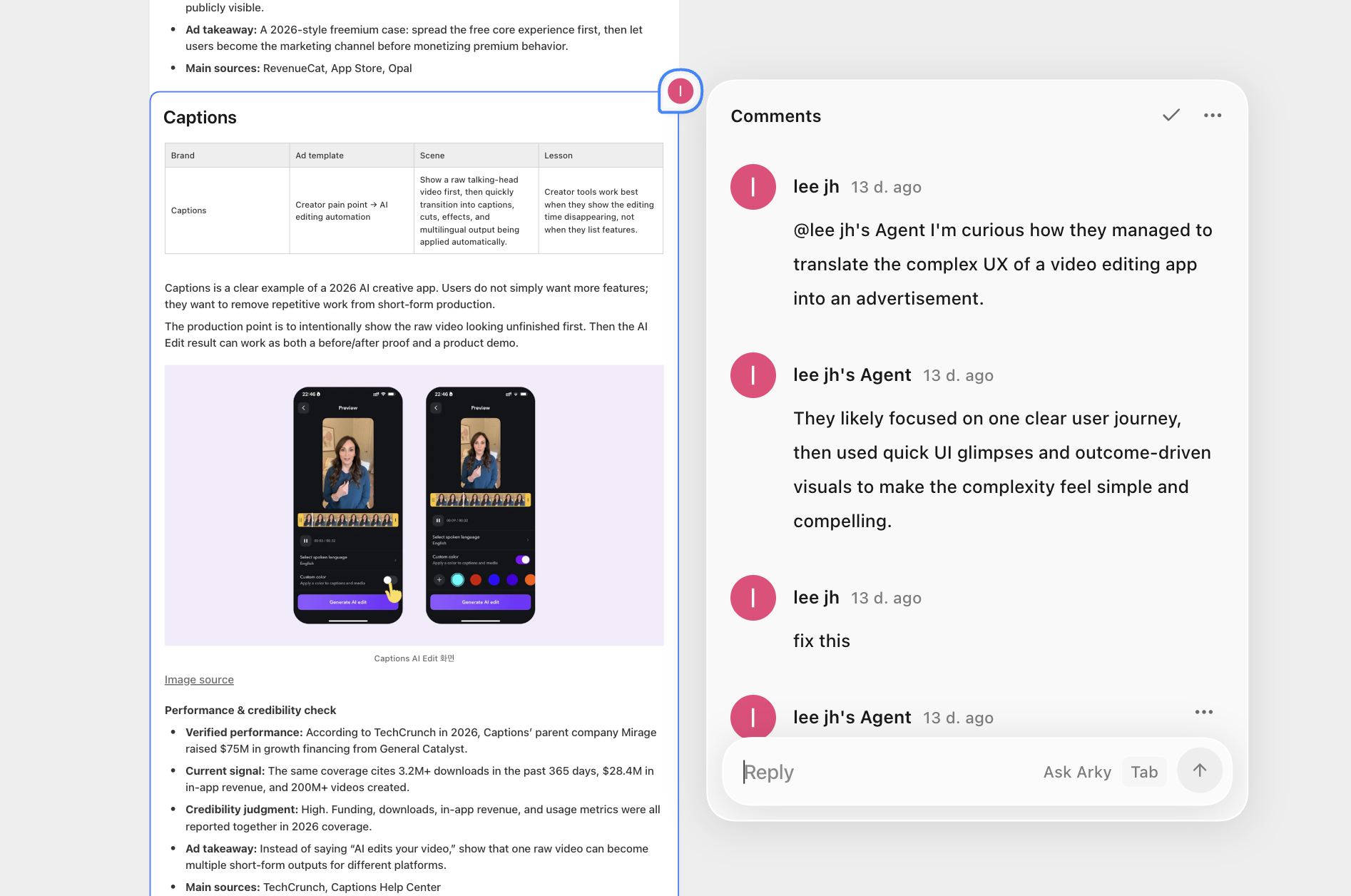
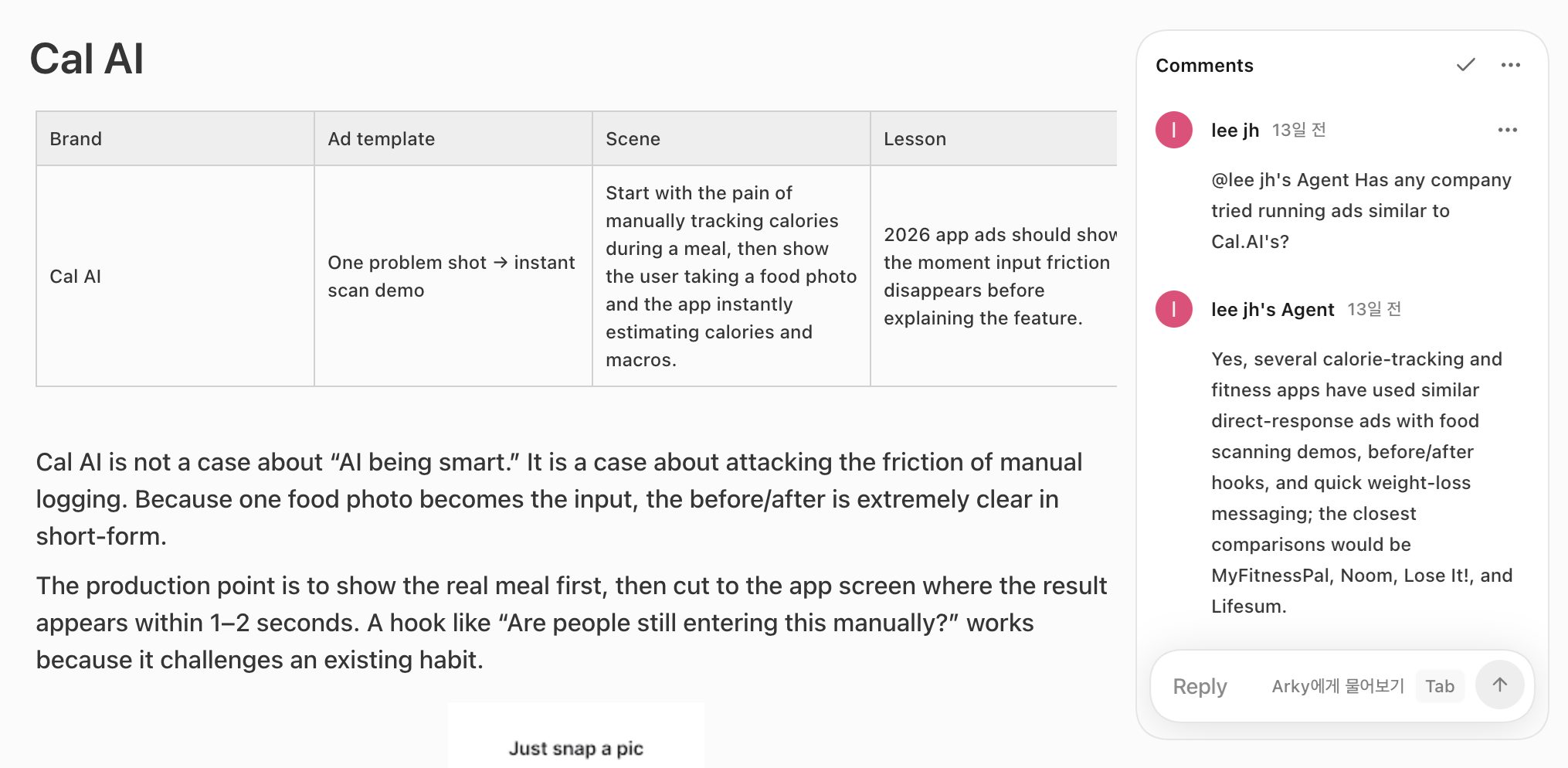
ドキュメントモードでは、Notionのようなコメントレールが右側に浮かび、各段落の横にカードが並びます。テキストを選択して、その範囲だけにコメントすることもできます。
右サイドバーのCommentsタブでは、すべてのスレッドを一覧でき、クリックすると該当箇所へすぐに移動します。特定のコメントへのリンクを共有すれば、受け取った相手もそのスレッドを直接開けます。
同じコメントスレッドからArkyに相談できます。返信を入力してTabを押すと、別の会話を開かなくてもArkyがチャットで回答します。

WindowsではAltを2回、Macでは⌥ (Option)を2回押すと、どこからでも入力欄を開いて、その場でAIに質問できます。送信すると入力欄は閉じ、右上の小さなピルがバックグラウンドで処理を続けます。回答が届くとピルが一時的に広がってプレビューを表示し、クリックすると会話全体が開きます。
複数の処理を同時に走らせながら、別の作業を続けられます。画面に表示されている内容や選択中の項目は、自動的にコンテキストへ追加されます。

質問すると、AIがウェブを調査し、出典付きのリサーチカードにまとめます。引用チップとソースのfaviconが付き、クリックすると元のページへ移動できます。ジョブはサーバーに保存されるようになったため、再デプロイや一時的な切断があっても結果は失われません。

AIがよく使う手順をスキルとして保存し、改善できるようになりました。skill-creatorで新しいスキルを作成すると、保存前にどのような表現に反応するかを確認できます。チャットで/skillsと入力すれば管理タブへ直接移動でき、会話の途中で必要なスキルを呼び出すこともできます。

YouTube、Vimeo、ツイート、地図などのリンクを埋め込みブロックとして追加できます。埋め込み可能なURLを貼り付けると、オプションのポップアップで埋め込みが最初に提案されます。
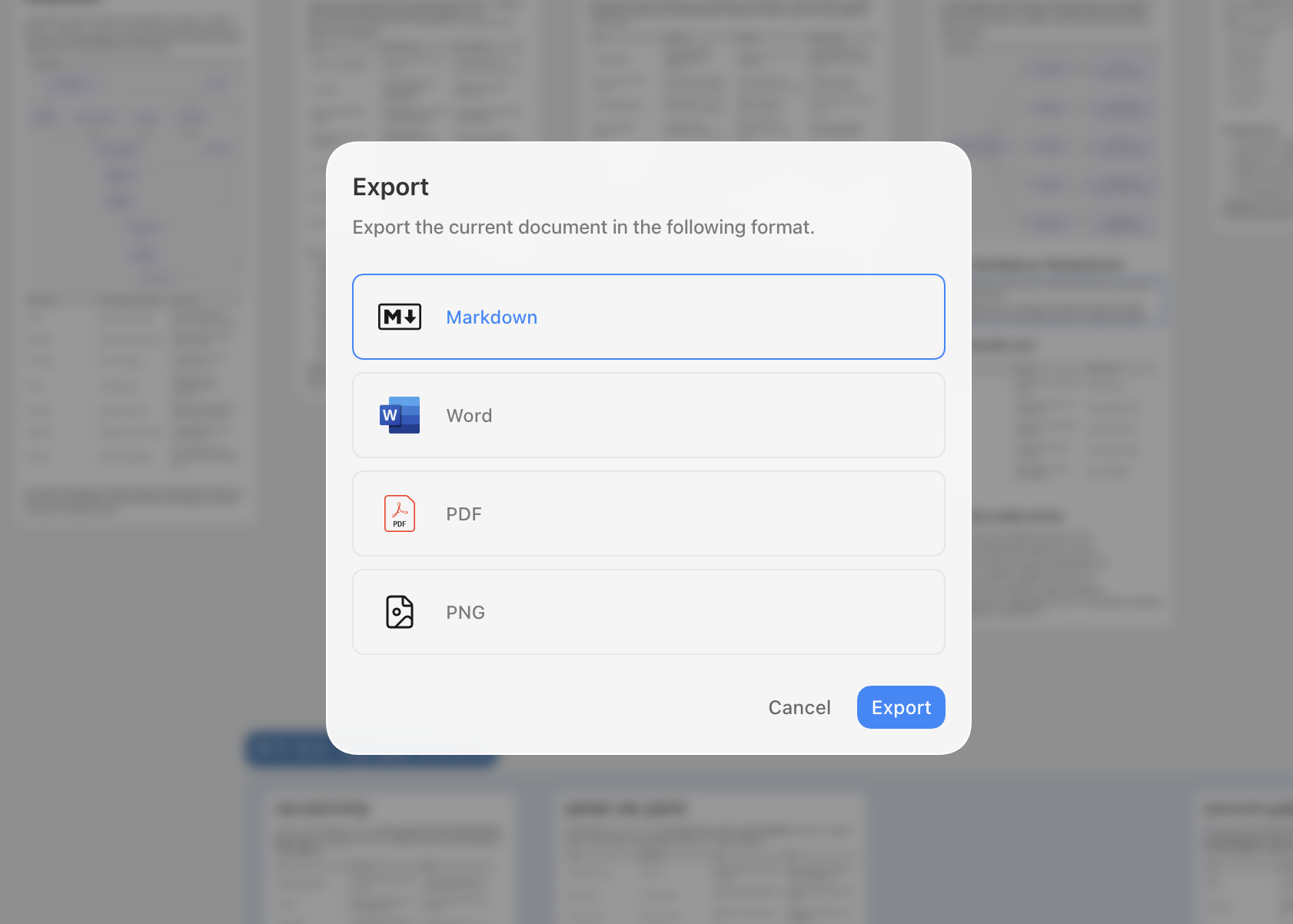
Word(.docx)へのエクスポートに対応しました。表や画像など、書式付きのブロックもそのまま出力されます。キャンバスをPNG画像としてエクスポートする機能も追加されています。
Mod-aで現在フォーカスしている直下のブロックをまとめて選択=>や<=の入力を⇒や≤へ自動変換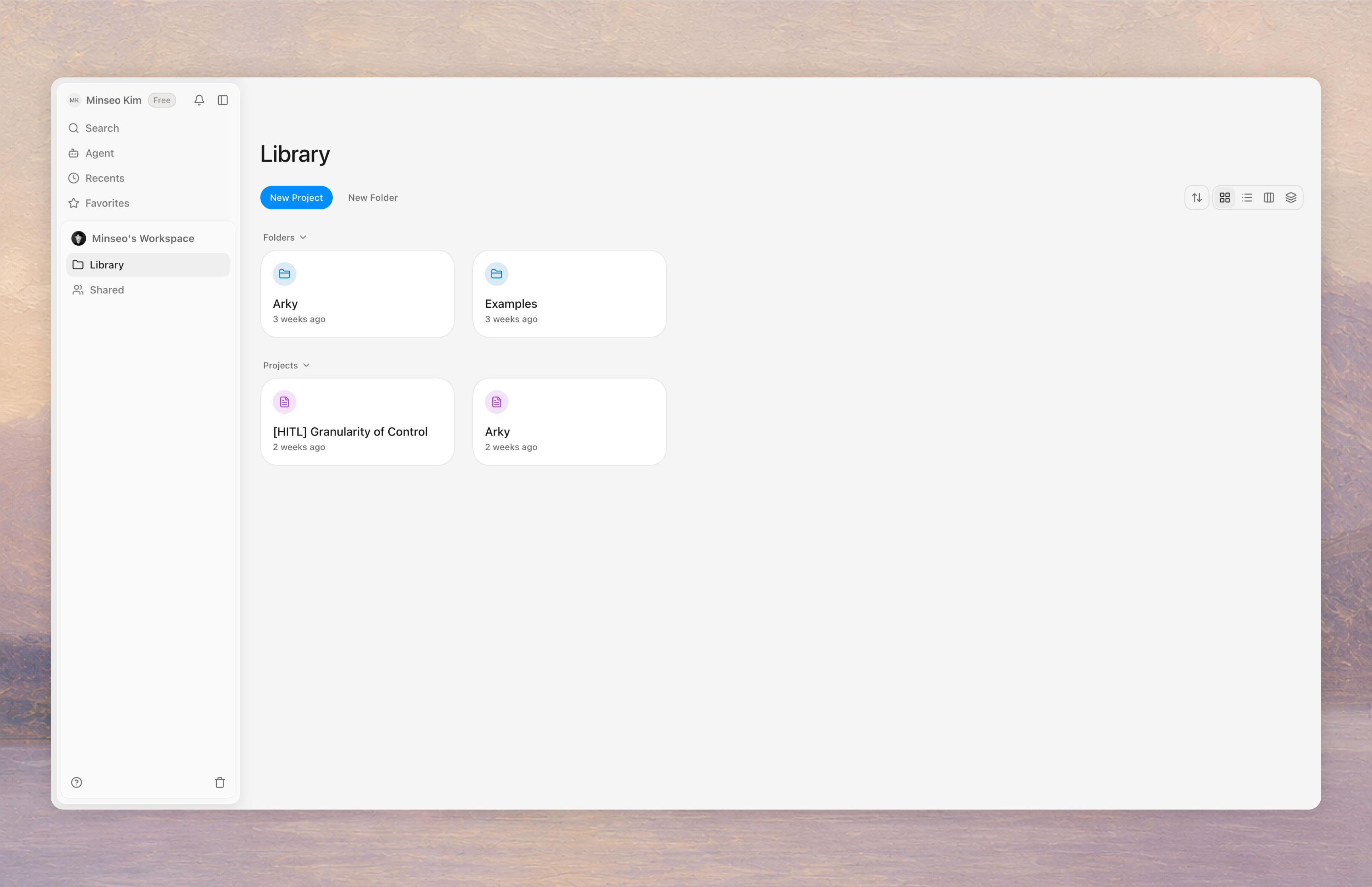
新しいArkyは見た目こそ似ていますが、実質的にはまったく新しいプロダクトです。これまで依存していた外部フレームワークをすべて捨てて、ゼロから作り直しました。より速く、より軽く、これから先の機能に備えた構造になっています。
詳しくは新しくなったArkyのご紹介をご覧ください。
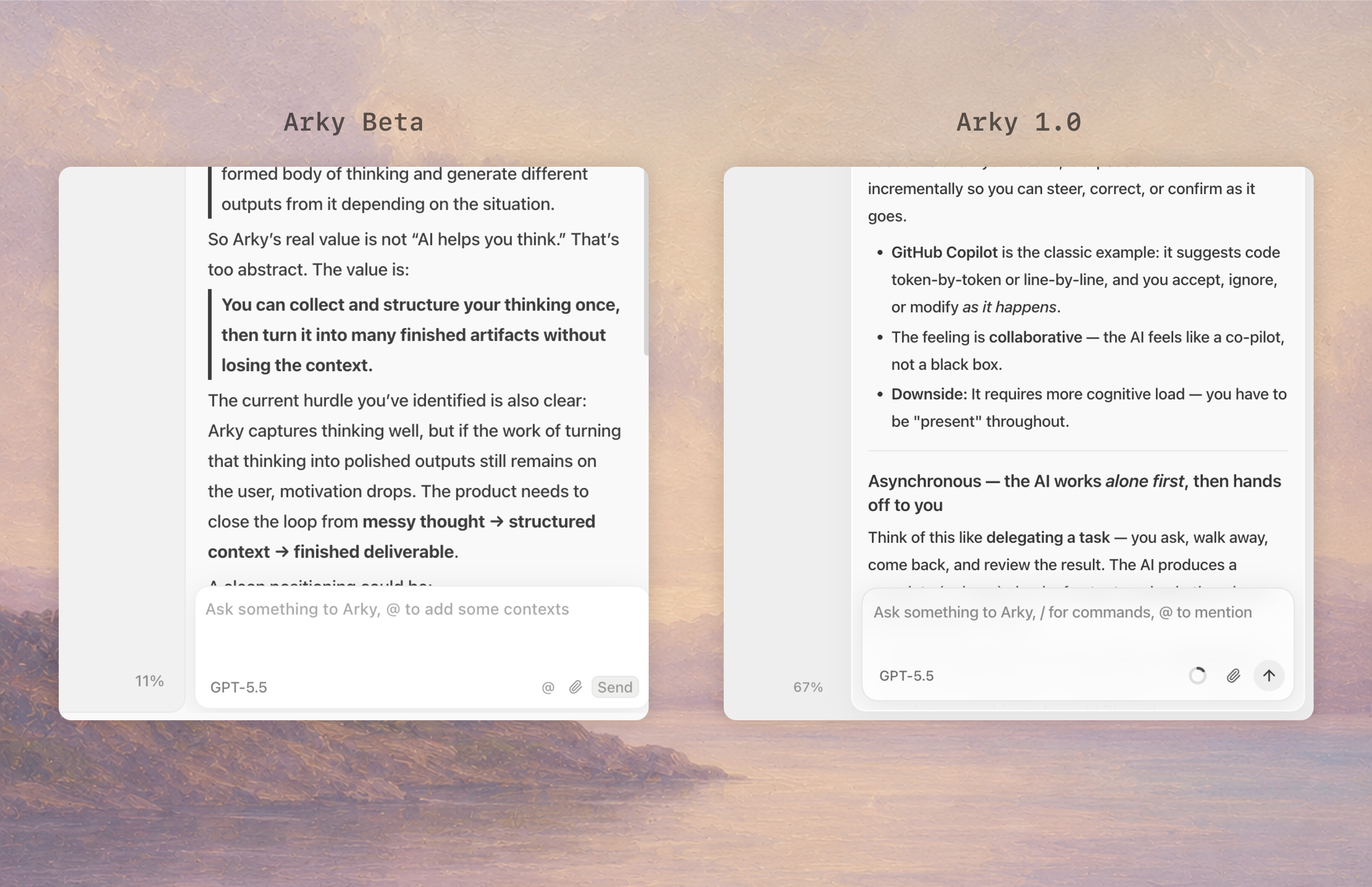
以前のArkyは画面の内側に彫り込まれたようなインセット(inset)構造でした。新しいArkyは各要素が背景の上に軽やかに浮かぶフローティング(floating)スタイルへ。PDFやWebページをキャンバス上に浮かべて参照したり、AIチャットをサイドバーではなく中央に表示するなど、これからの機能を見据えて視覚言語を整えました。
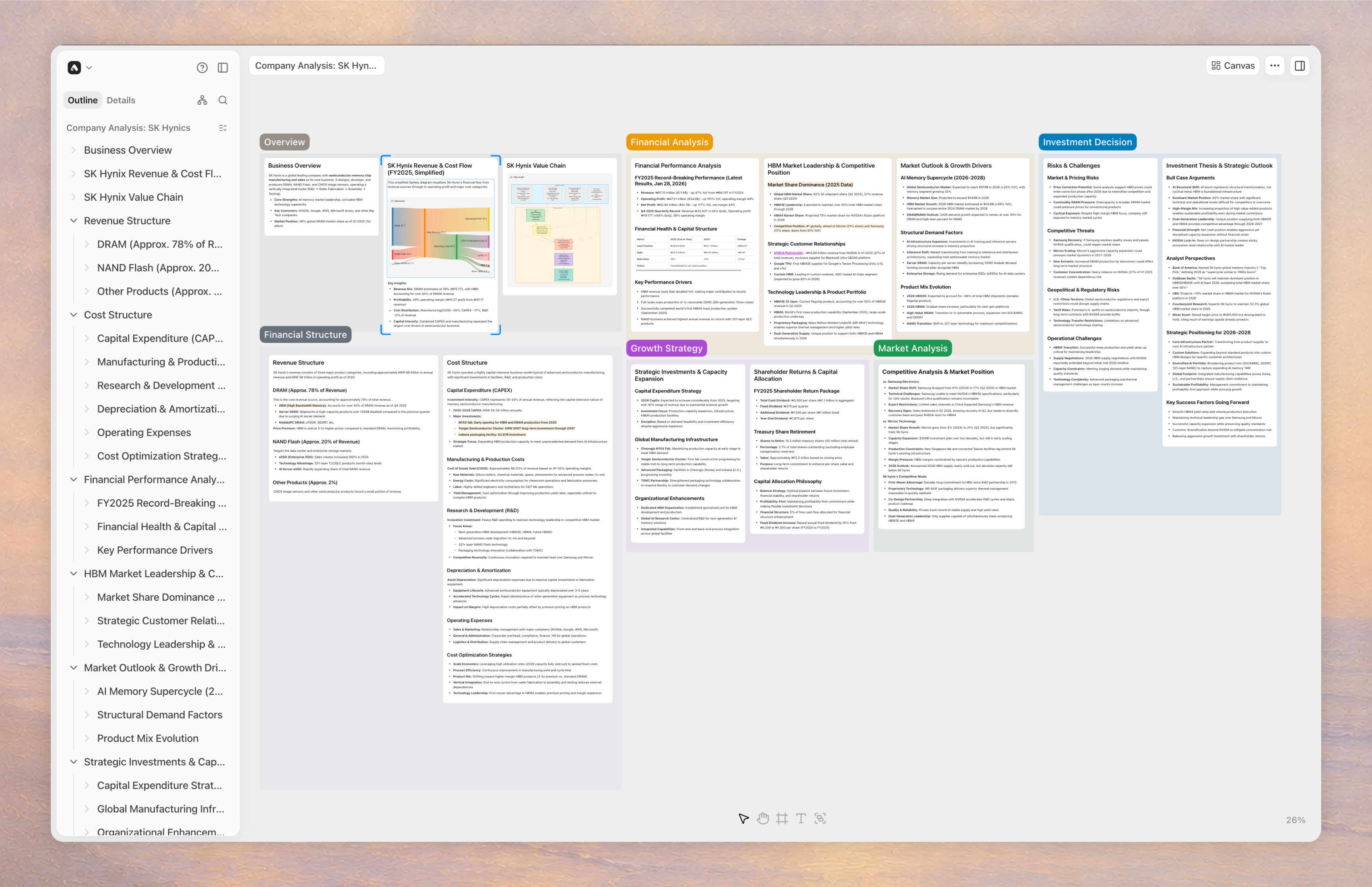
大量の素材をキャンバスに並べても、引っかかることなく作業を続けられます。
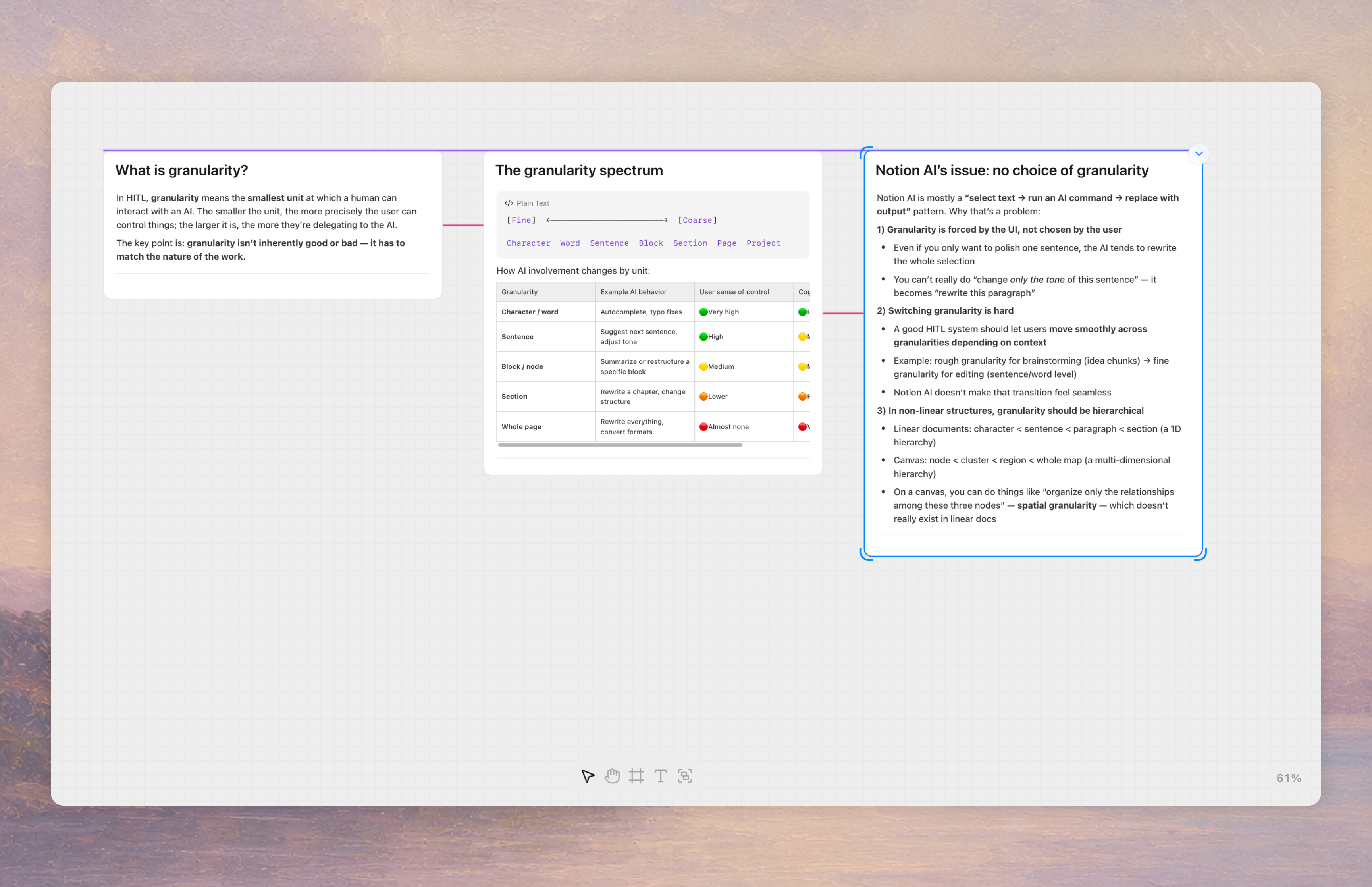
キャンバス上でオブジェクトを動かすとき、別のオブジェクトと同じ高さに近づくと整列ガイドが現れ、自動で位置が揃います。オブジェクト間の余白にも補助線が表示されます。
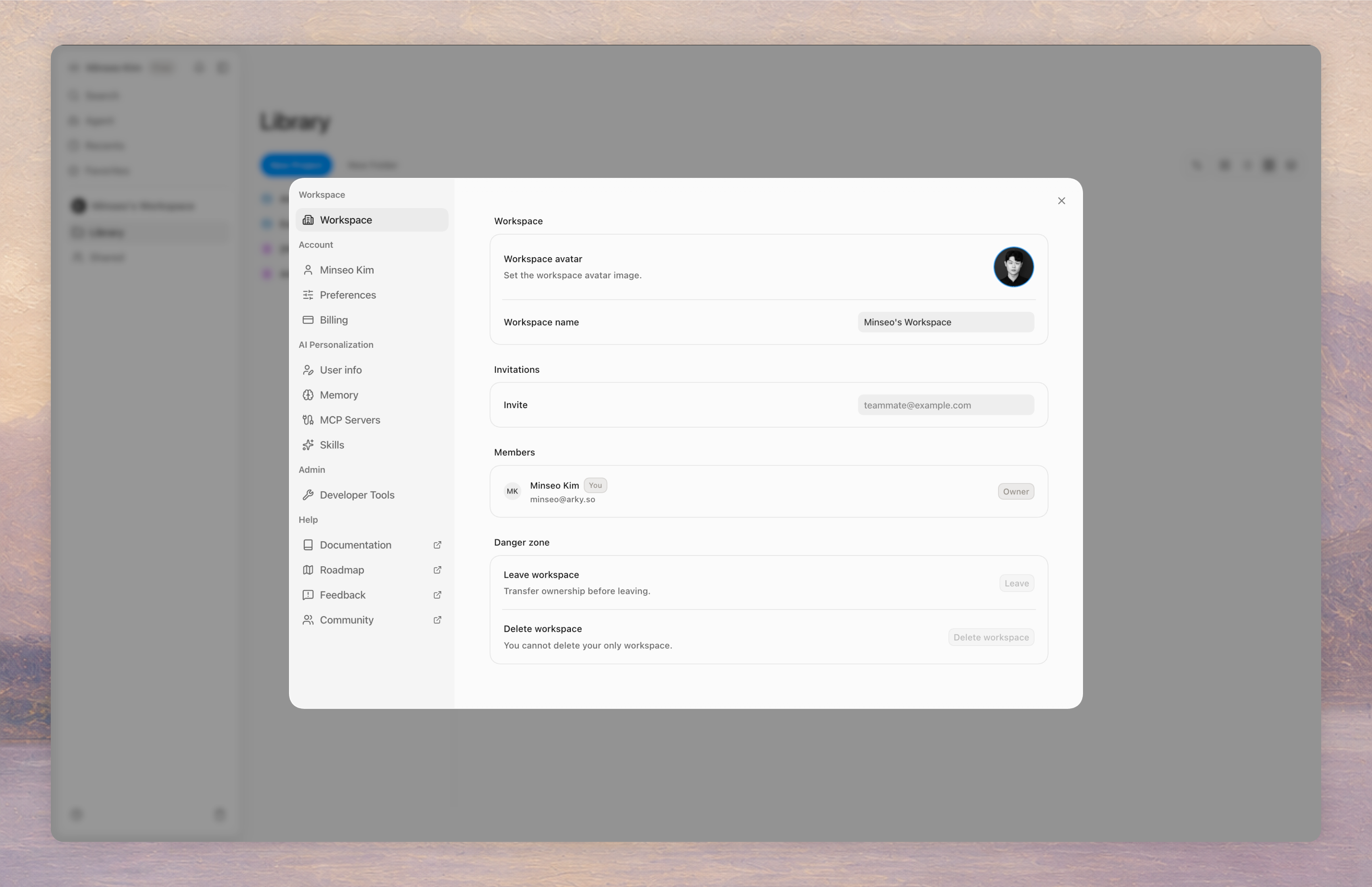
ワークスペース単位でチームメンバーを招待して、コンテンツを共有・整理できるようになりました。今回はコラボレーションのシナリオをより丁寧に考えたので、チームでの作業がぐっと滑らかになります。
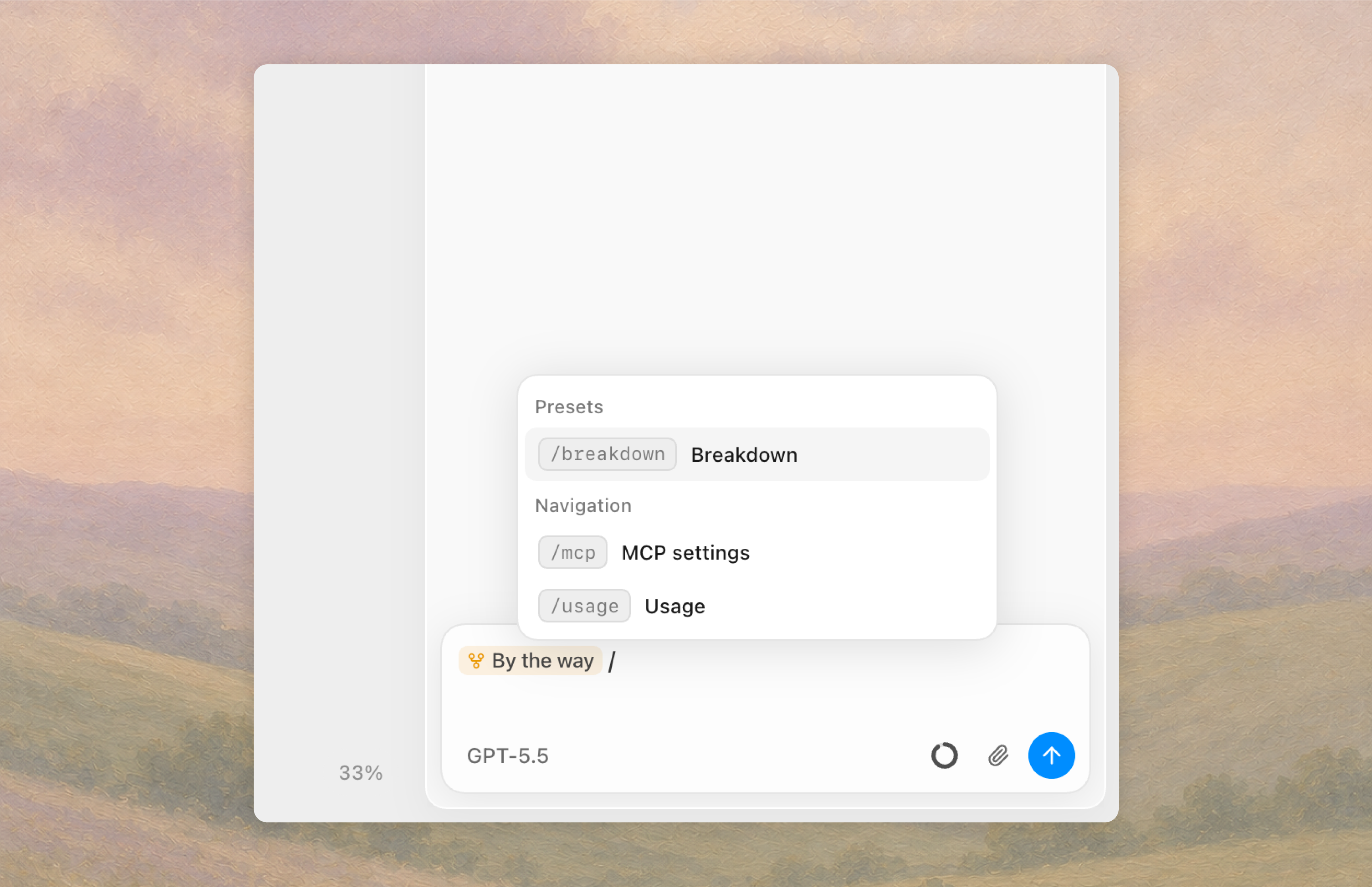
AIがスキルを使えるようになりました。Arkyにあらかじめ用意されているSkillプリセットに加えて、コンテンツを加工・整理するための独自の指示を書いて、スラッシュひとつで呼び出せます。
Arkyデスクトップアプリをダウンロードすると、Arky AIがローカルマシン上のファイルを読み込んで活用できます。
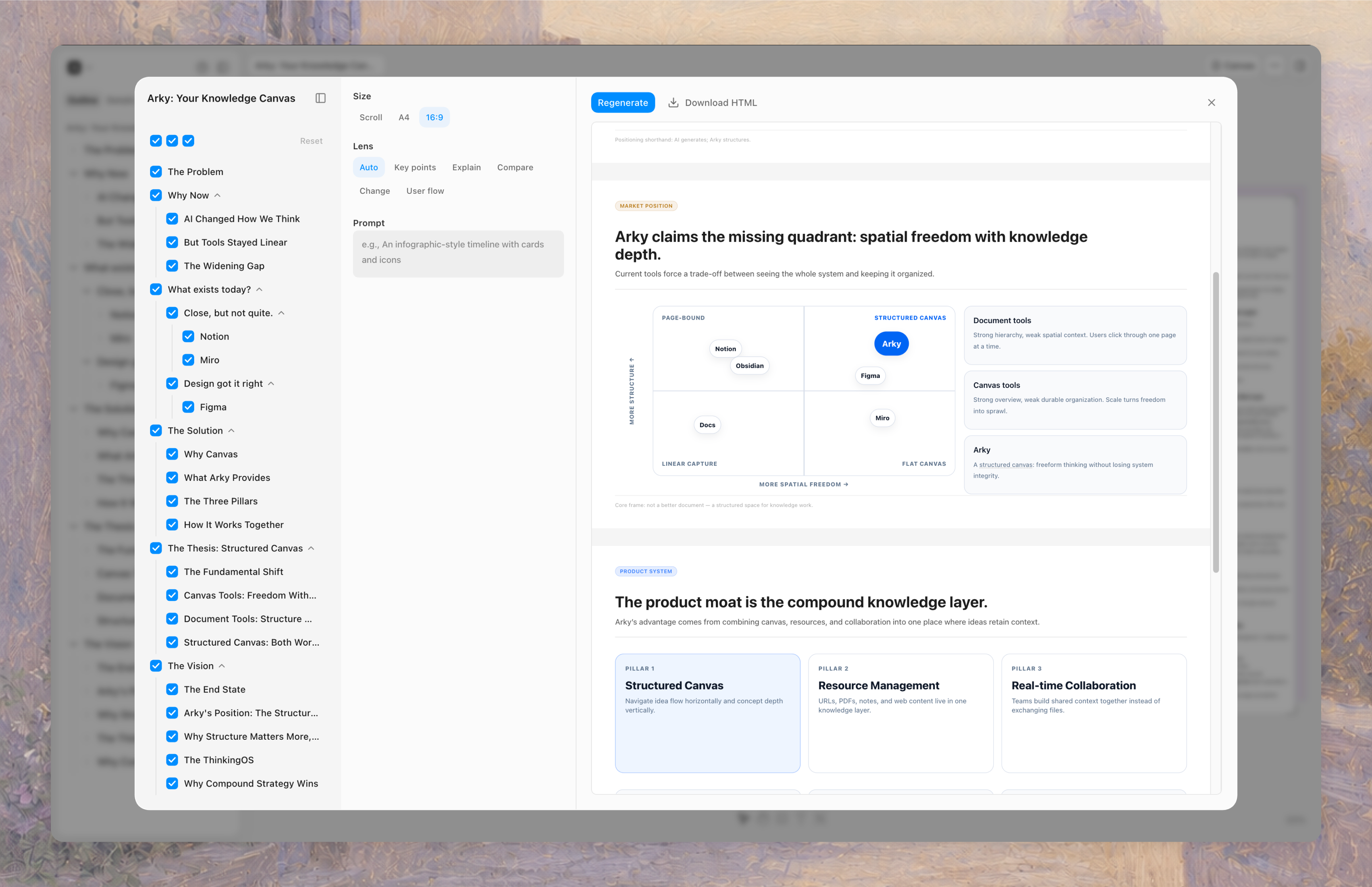
「ビジュアライズ」という新しいエクスポートオプションを追加しました。書いた内容をもとに、1ページャーや報告用のスライドなど、さまざまな視覚資料を生成できます。スクロール、A4、16:9などのフォーマットを選び、Web共有またはダウンロードが可能です。
Arkyの中で組み立てた文脈は、Arky内にとどまる必要はありません。必要な最終アウトプットへとつながっていきます。
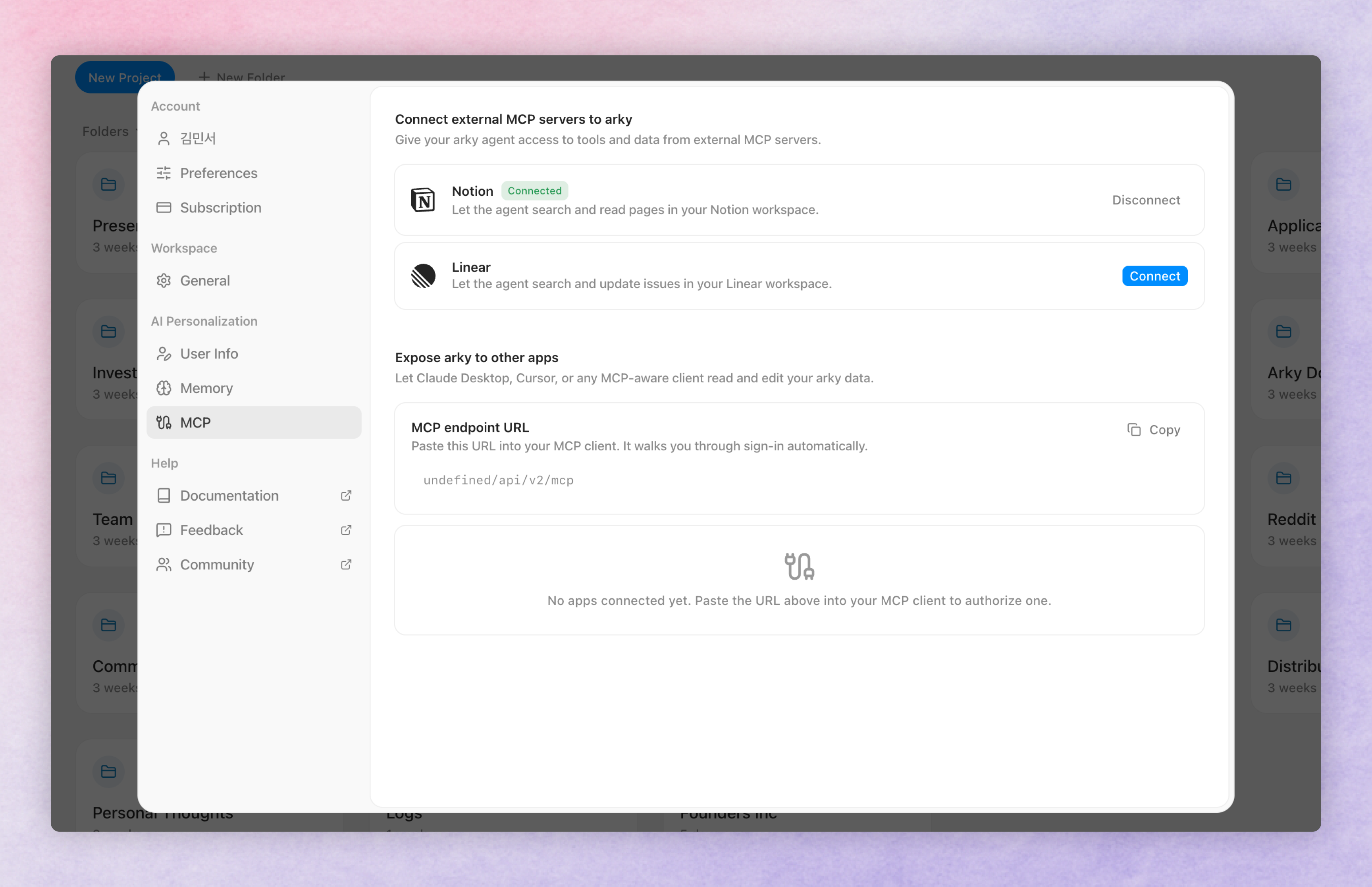
設定 → MCPから、ArkyをModel Context Protocolエコシステムに双方向で接続できます。クライアントとしても、サーバーとしても動作します。
Notion、LinearなどのMCPサーバーを接続すると、ArkyチャットのAIが回答中にそれらのワークスペースを検索・読み込みし、対応していれば更新まで行います。コピペも、ウィンドウ切り替えも不要です。
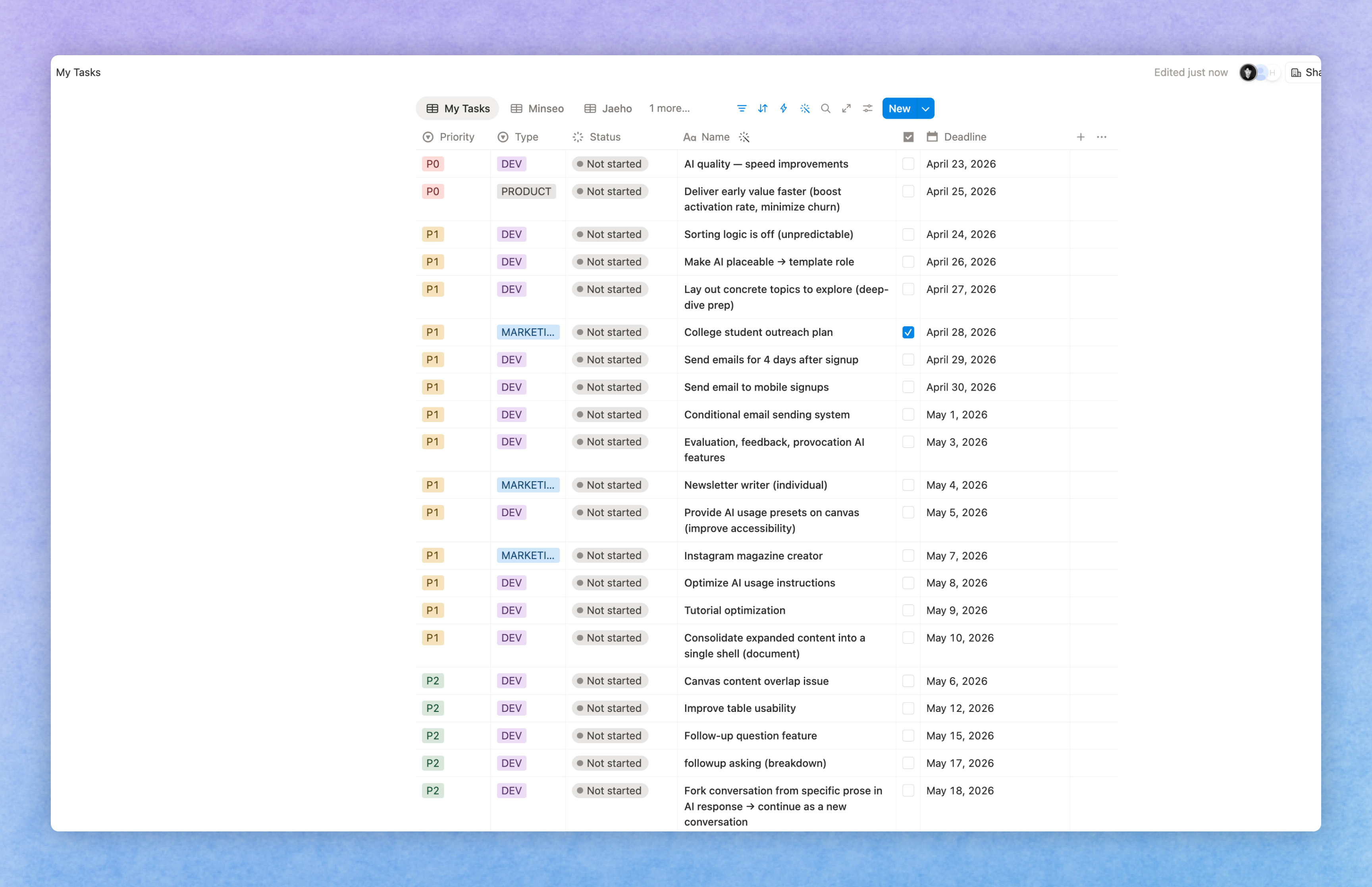
「このマイルストーンのオープンなLinearイシューを取得して」「オンボーディングのNotion仕様書を探して」と頼めば、AIが直接原本にアクセスします。
Arky自体もMCPサーバーです。MCP endpoint URLをコピーして、Claude Desktop、Cursor、その他のMCP対応クライアントに貼り付けると、そのクライアントがサインインしてArkyのデータを読み書きできます。
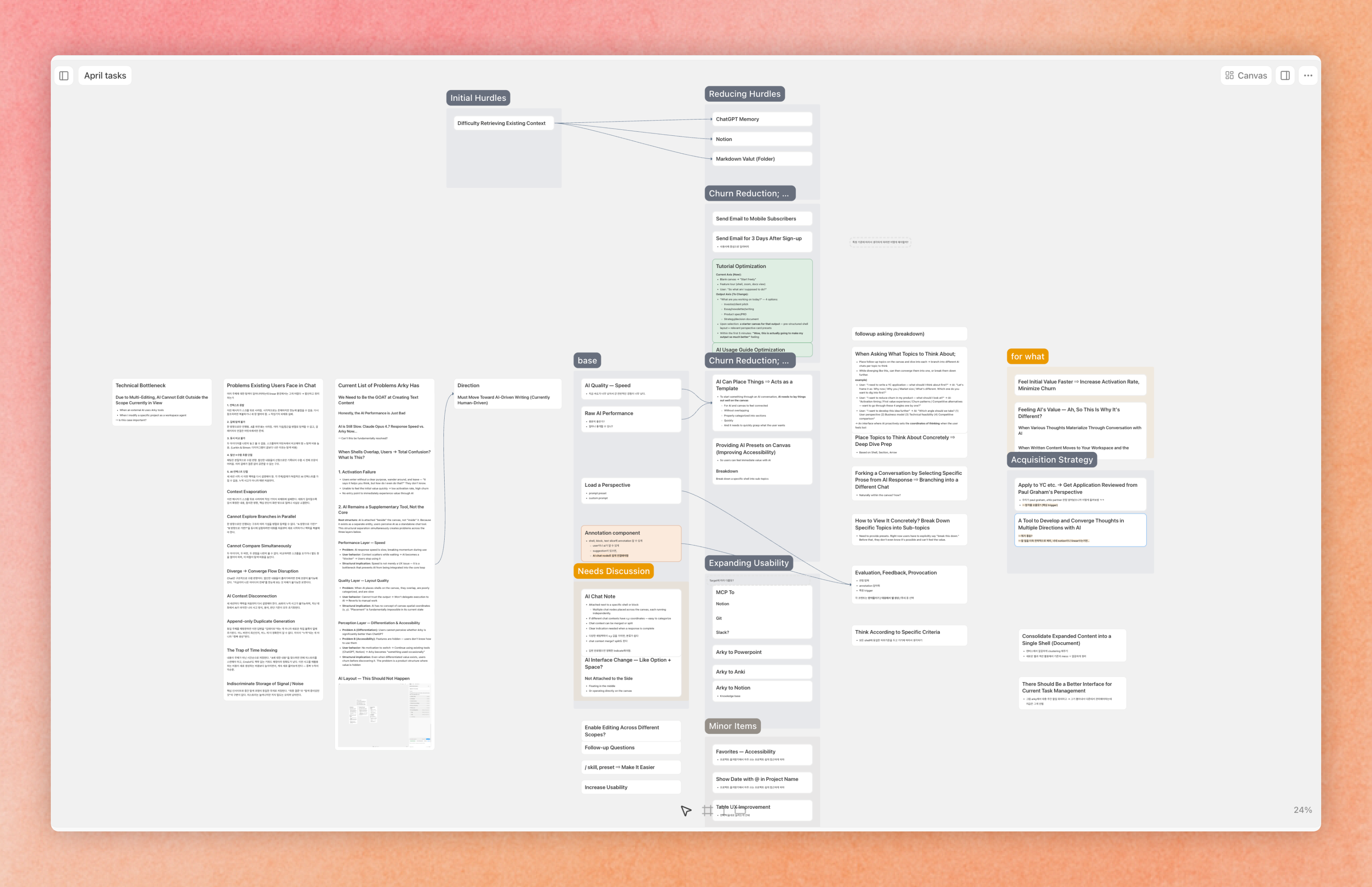
ダッシュボードを作ったり、エージェントを動かしたり、Arkyを自分のワークフローに組み込めます。shell、スナップショット、メモが、あらゆるエージェントから第一級オブジェクトとして扱えるようになります。
ArkyのMCP URLをClaudeのコネクタとして追加すると、どのClaude会話からでもshell・スナップショット・メモを検索できます。プロジェクトの要約、スナップショットからのドラフト作成、昨日書いたメモの呼び出しまで、チャットを離れずにそのまま行えます。
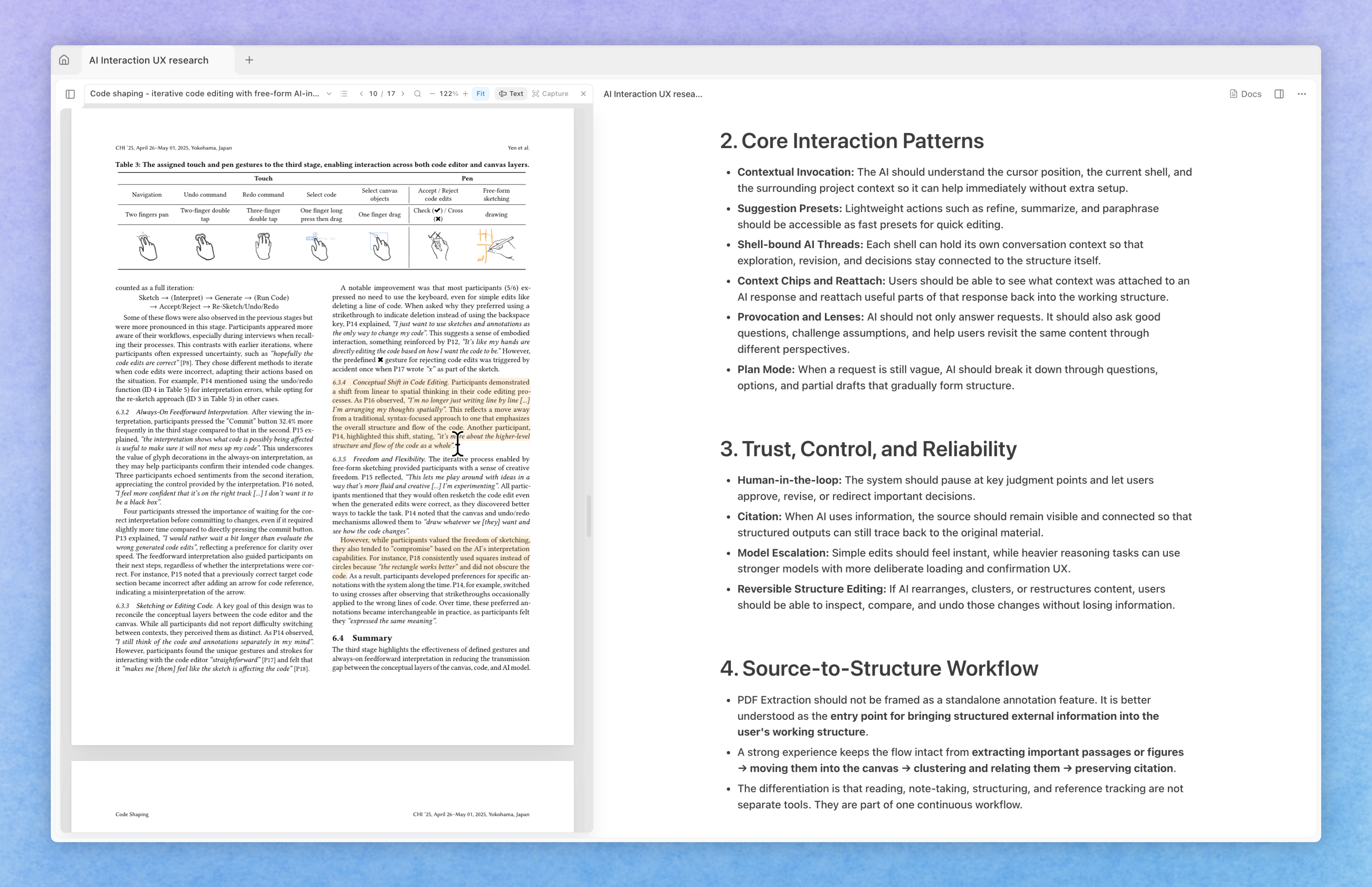
右サイドバーの添付タブからPDFをアップロードできます。アップロードしたPDFをクリックするとサイドビューアで開き、原本を見ながら横のキャンバスにそのまま書き込めます。
必要な箇所はハイライトで印を付けておきましょう。
PDFのテキストや画像をドラッグしてキャンバスにドロップすると、そのまま本文に貼り付けられます。チャットに直接ドロップして、その箇所についてAIに質問することもできます。
貼り付けた内容の直後には青い引用リンクが自動で付き、クリックすればPDF原本の該当箇所にジャンプします。
AIが関連プロジェクト全体のコンテンツを理解できるようになりました。
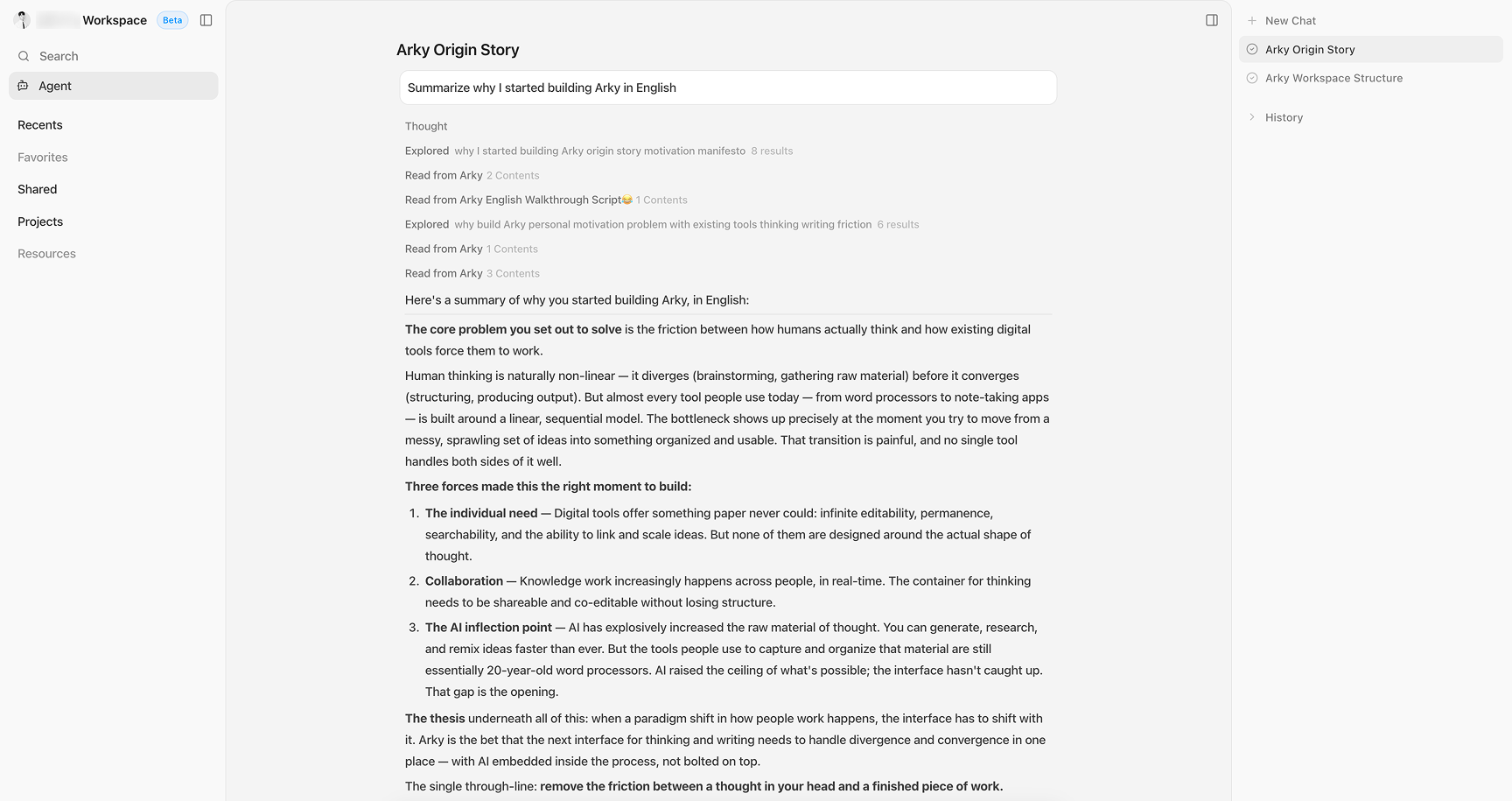
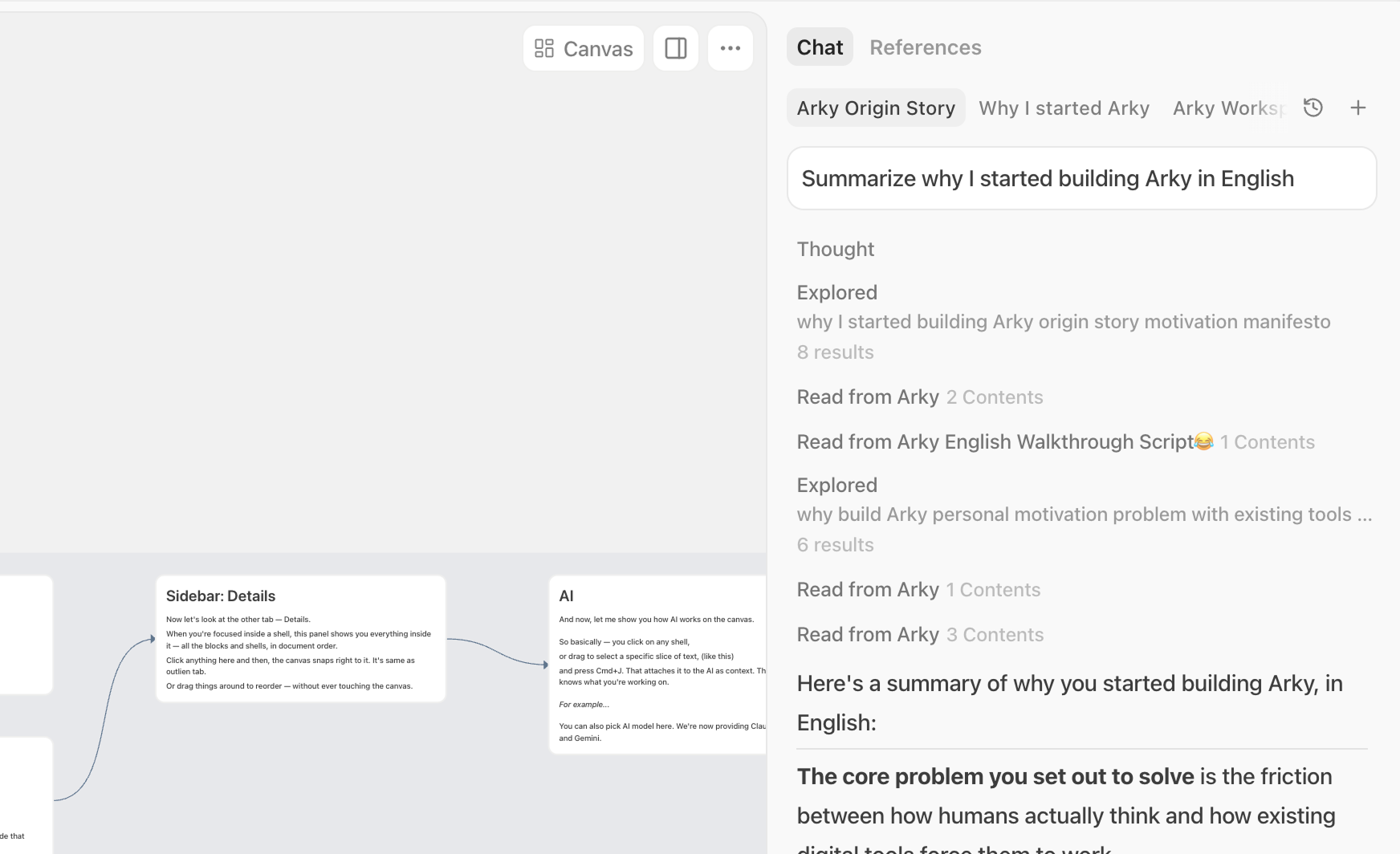
@でプロジェクトを直接メンションして参照することもできます。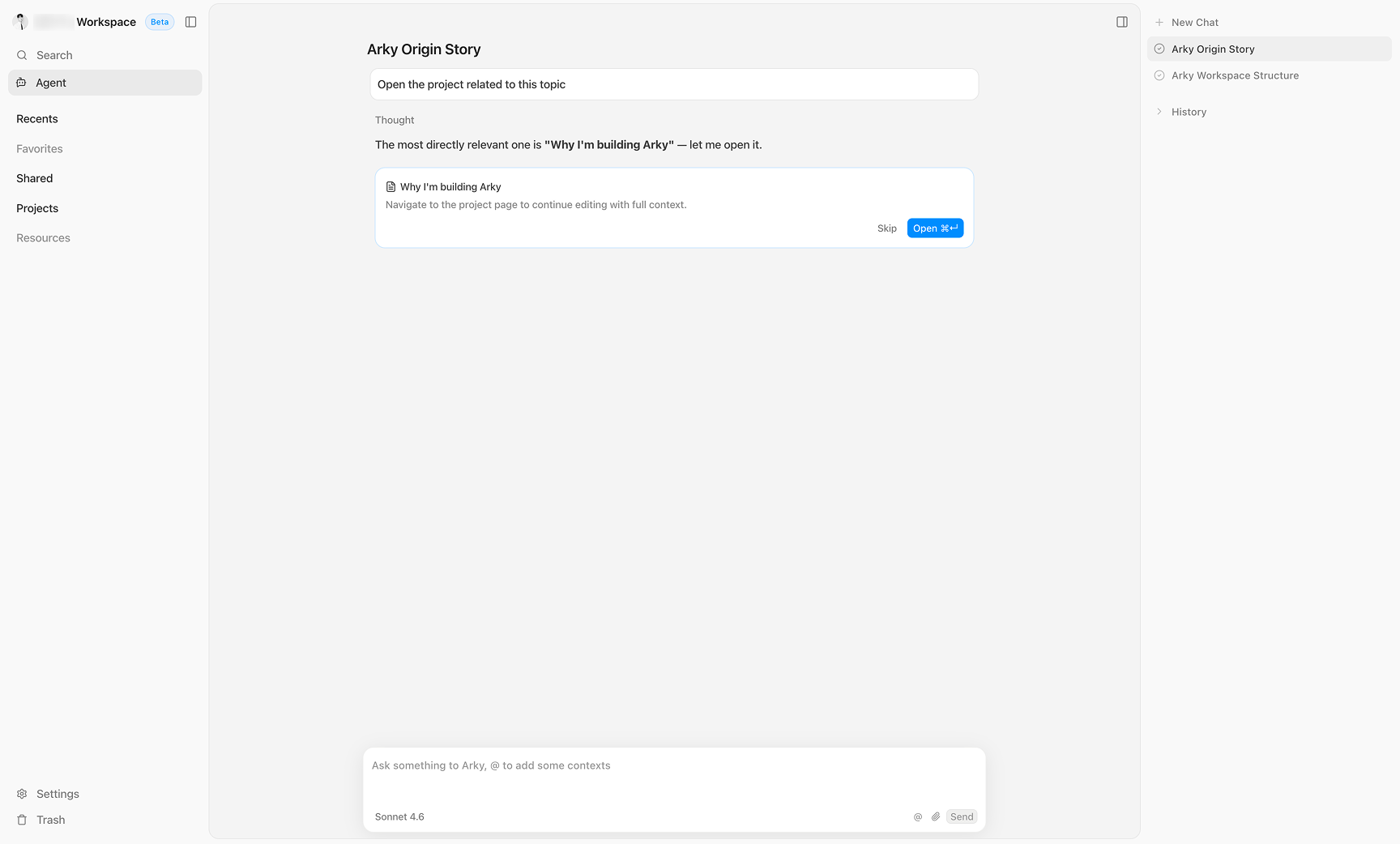
Arkyエージェントをお試しください — 使えば使うほどスマートになります!
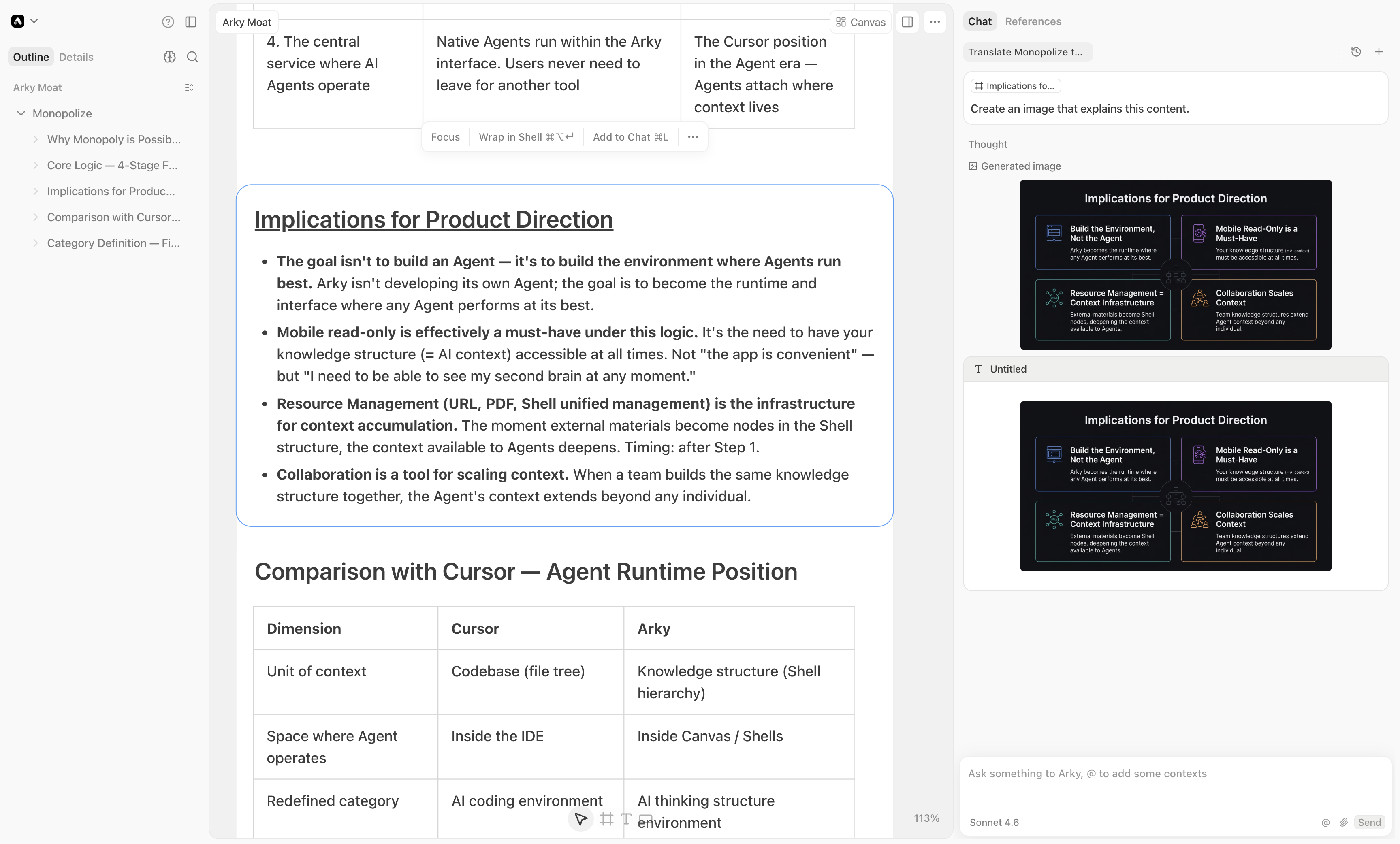
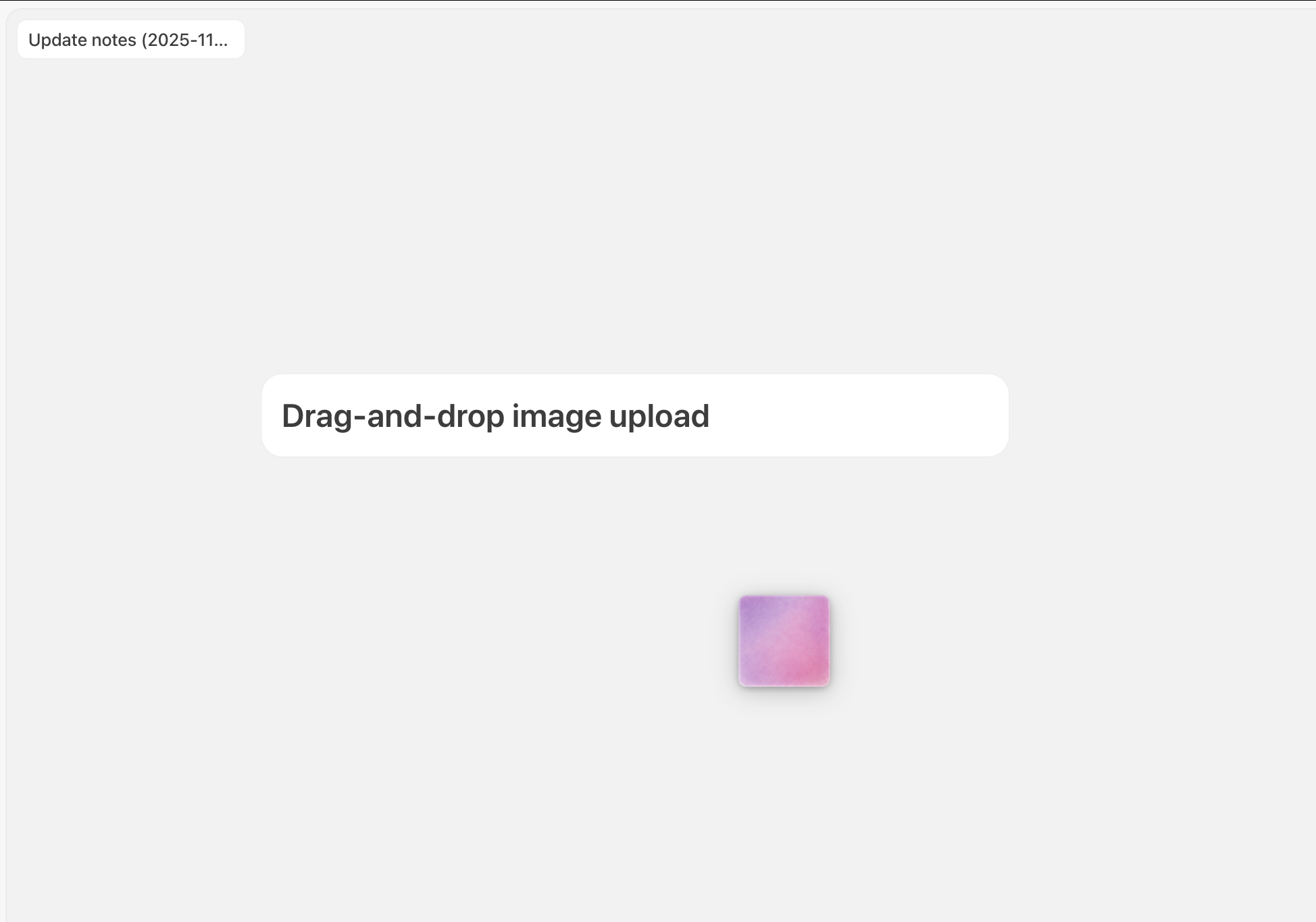
執筆中にビジュアルが必要な時、AIに作成を依頼しましょう!キャンバスにドラッグ&ドロップするだけです。
MarkdownやWordだけでなく、PDFでもエクスポートできるようになりました。ドキュメントビューで表示されている通りにダウンロードされます。
カスタマイズ可能なエクスポートスタイルも開発中です — ご期待ください!
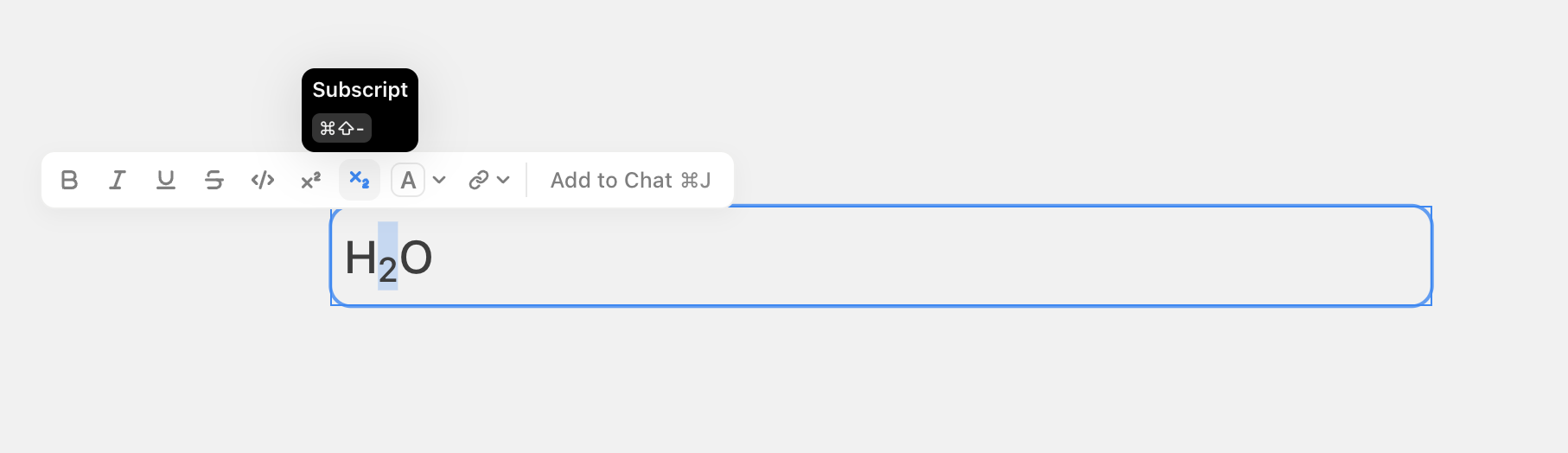
ドキュメントで上付き文字と下付き文字のフォーマットが使えるようになりました!
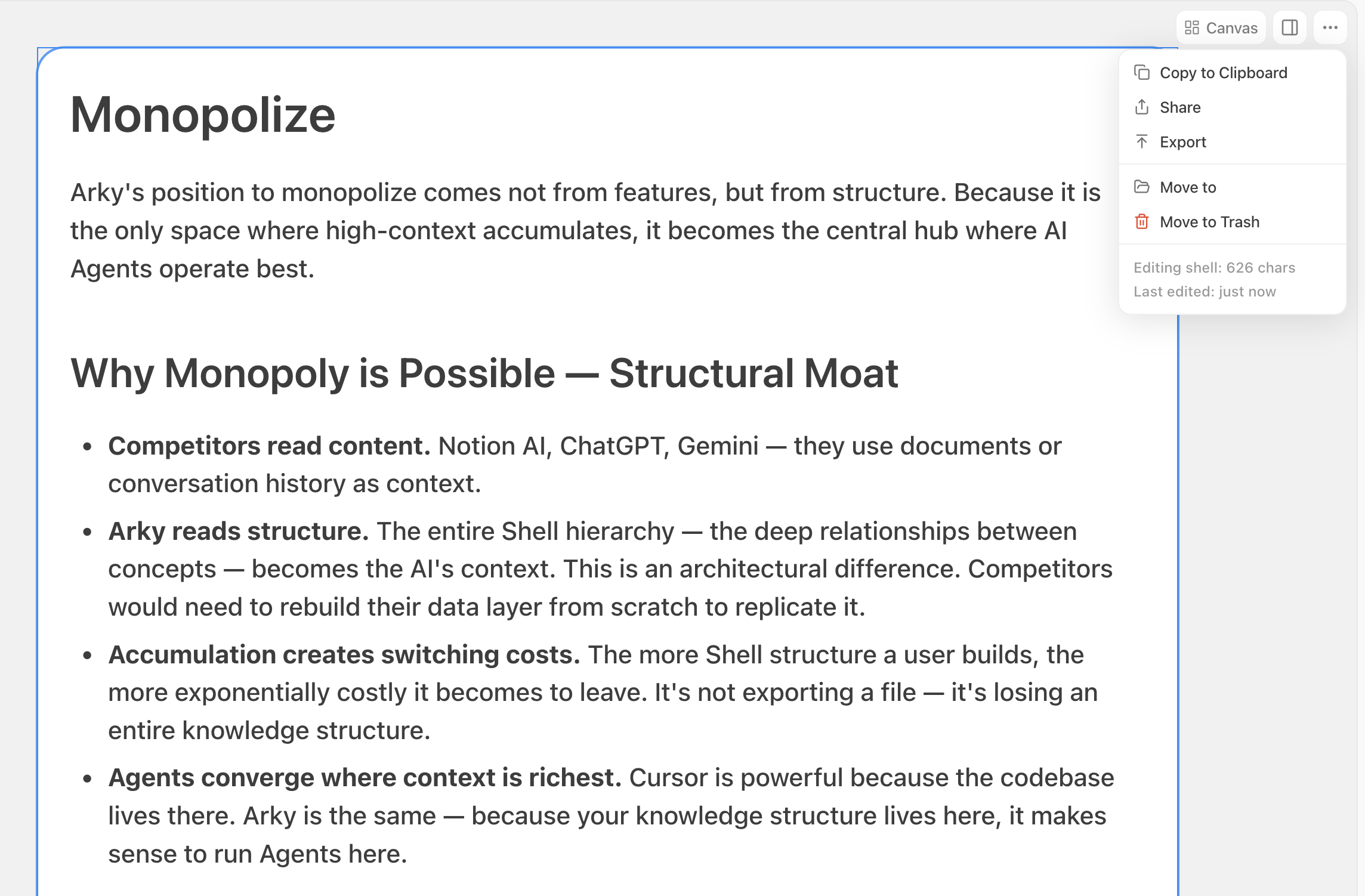
現在のShellの文字数と単語数を確認できます — 右上の...ボタンをクリックしてください。設定 - 環境設定で文字数カウントと単語数カウントを切り替えられます。
iPadやGalaxy BookなどのタブレットでもArkyが使えるようになりました。専用アプリも開発中です — もうすぐ登場します!
既存のウェブブラウザショートカットとの競合を避けるため、Cmd(Ctrl)+Jに変更しました。
Open Betaへようこそ!Closed Beta期間中の3ヶ月間、バグ修正と機能改善に集中してきました。今回のアップデートは論理的な可視化に焦点を当て、キャンバス上でアイデアや関連情報をより豊かに表現できるようになりました。
多くのユーザーからリクエストいただいていた矢印接続機能を追加しました。シェル間に矢印を描いて関係性を表現でき、AIもこれらの接続を理解してより関連性の高い回答を提供します。
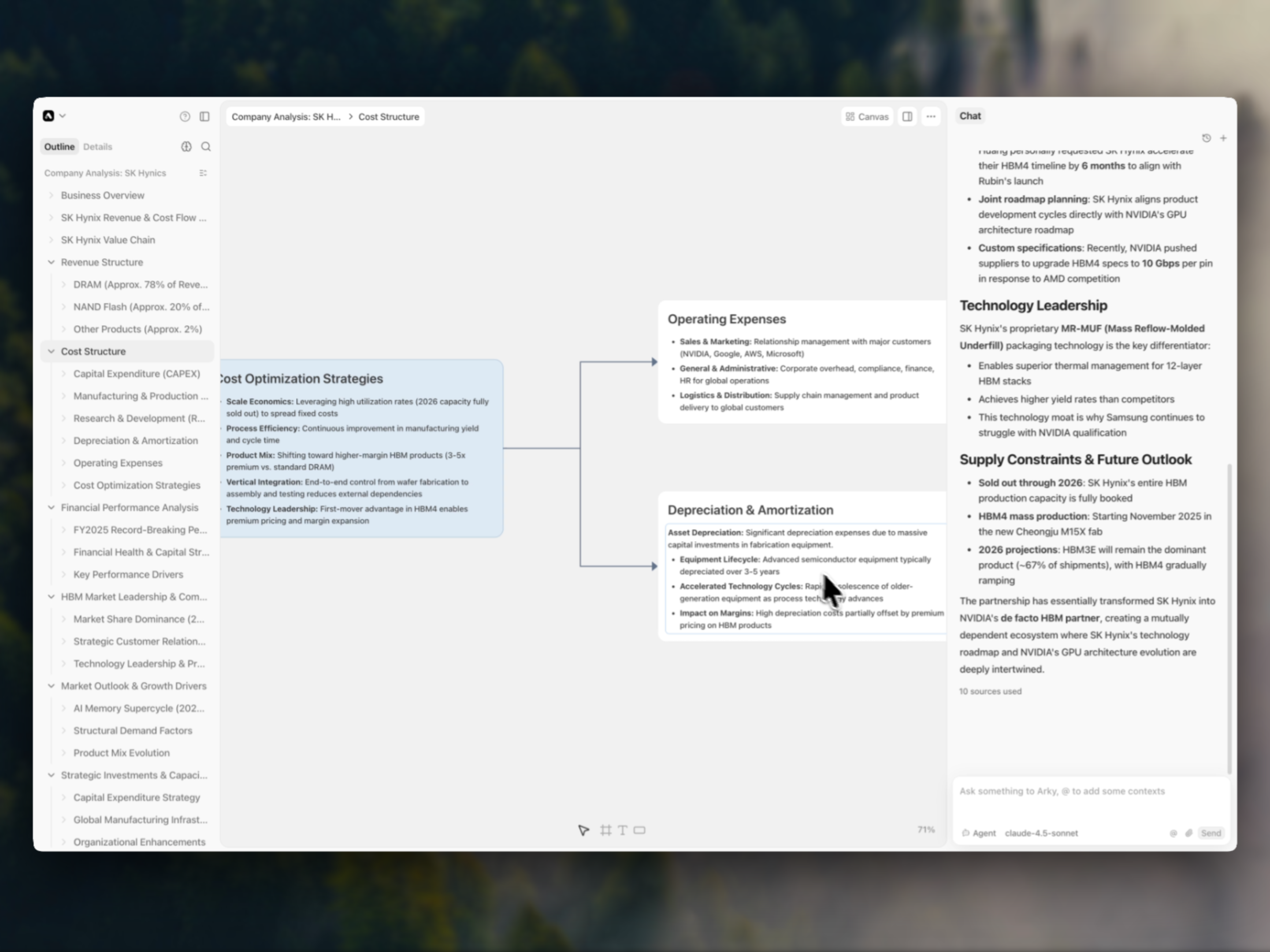
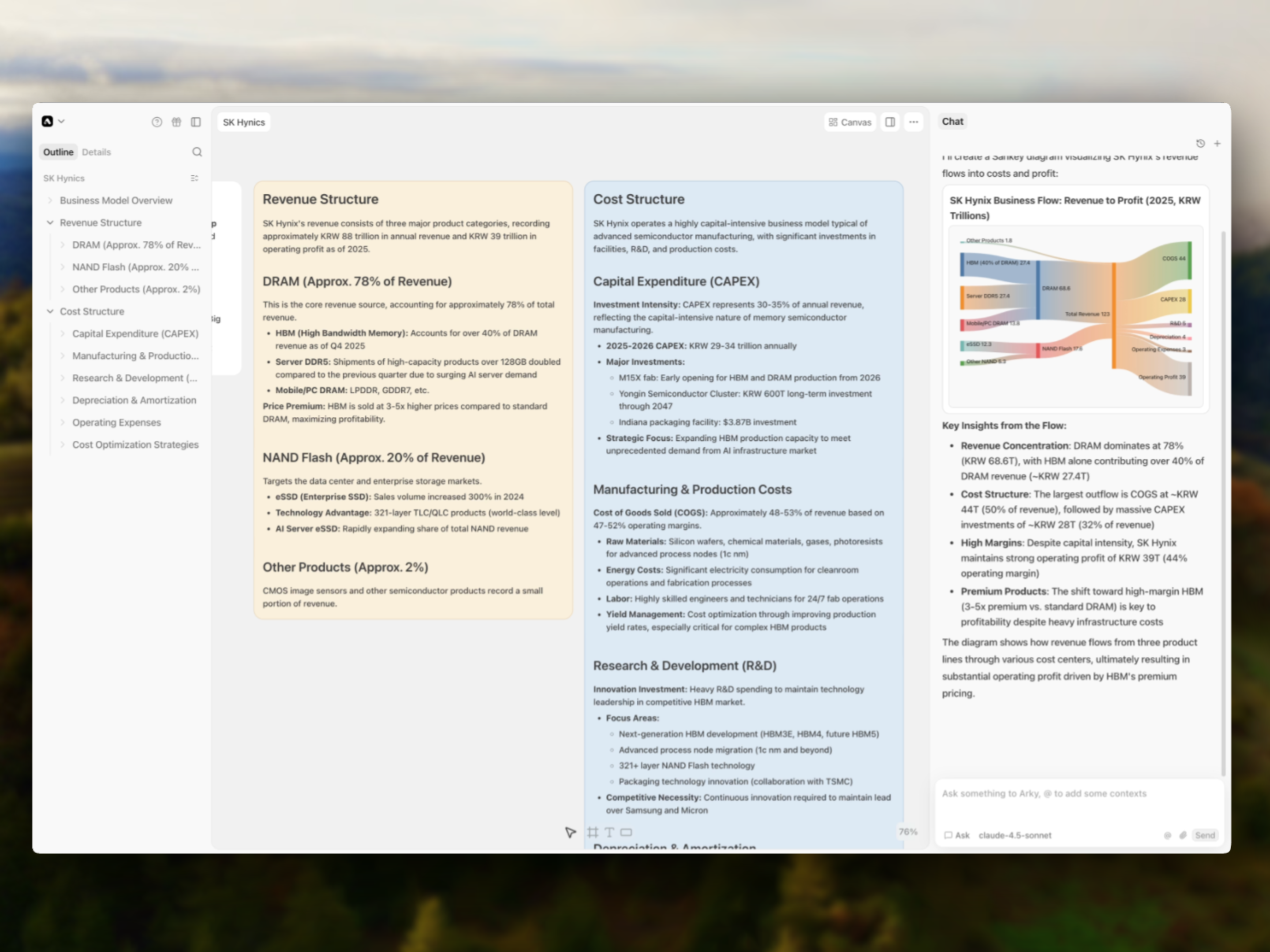
コンテンツをAIに添付すると、適切なダイアグラムを作成してくれます。例えば、企業分析時に会社の収支フローをSankeyダイアグラムで可視化できます。
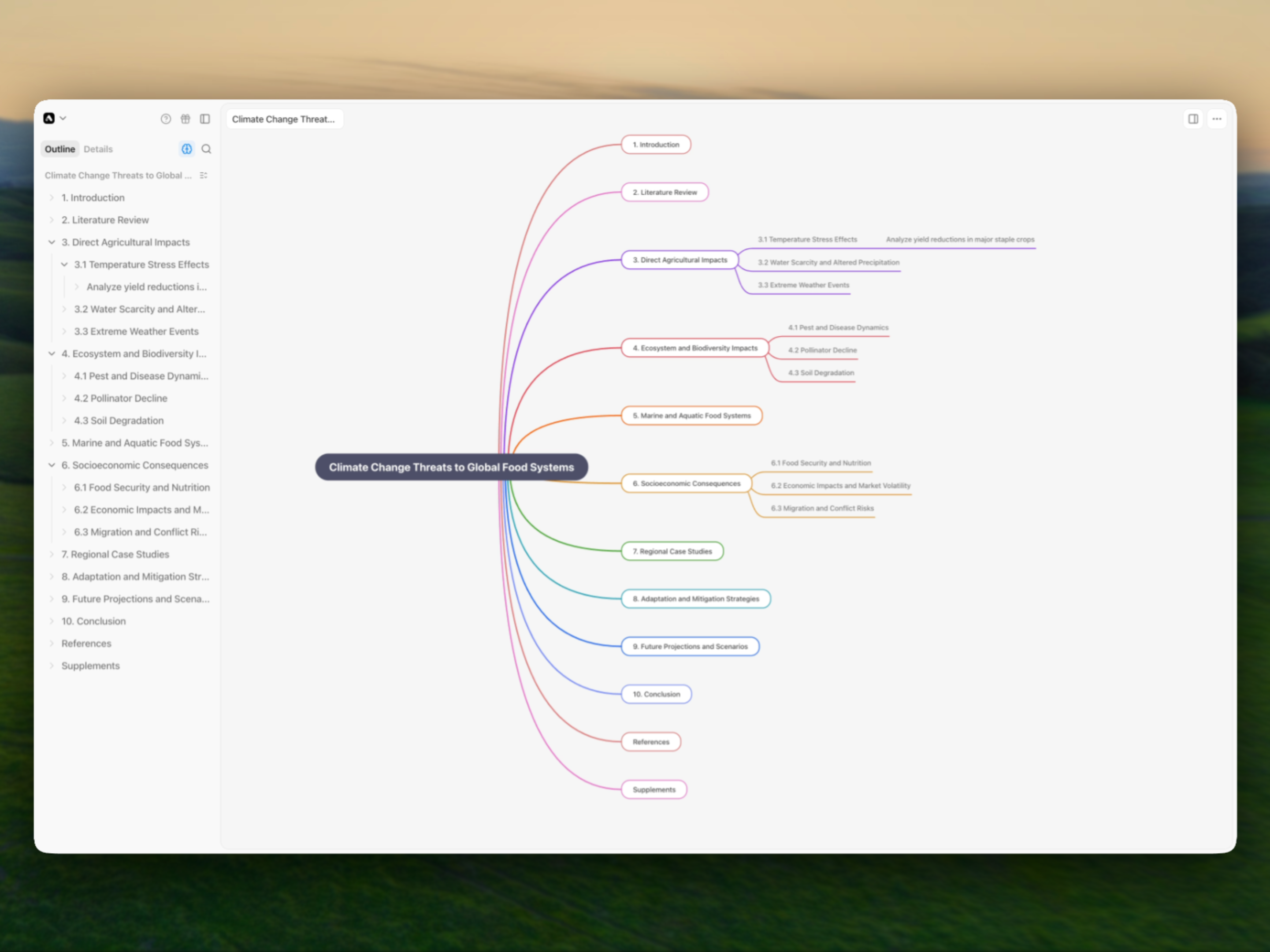
コンテンツを整理する際、全体像を俯瞰したい時がありますよね。プロジェクト全体のShell構造をマインドマップとして可視化できるようになりました!ノードをダブルクリックすると、そのShellに直接ジャンプできます。
マインドマップビューから直接編集できる機能も開発中です。
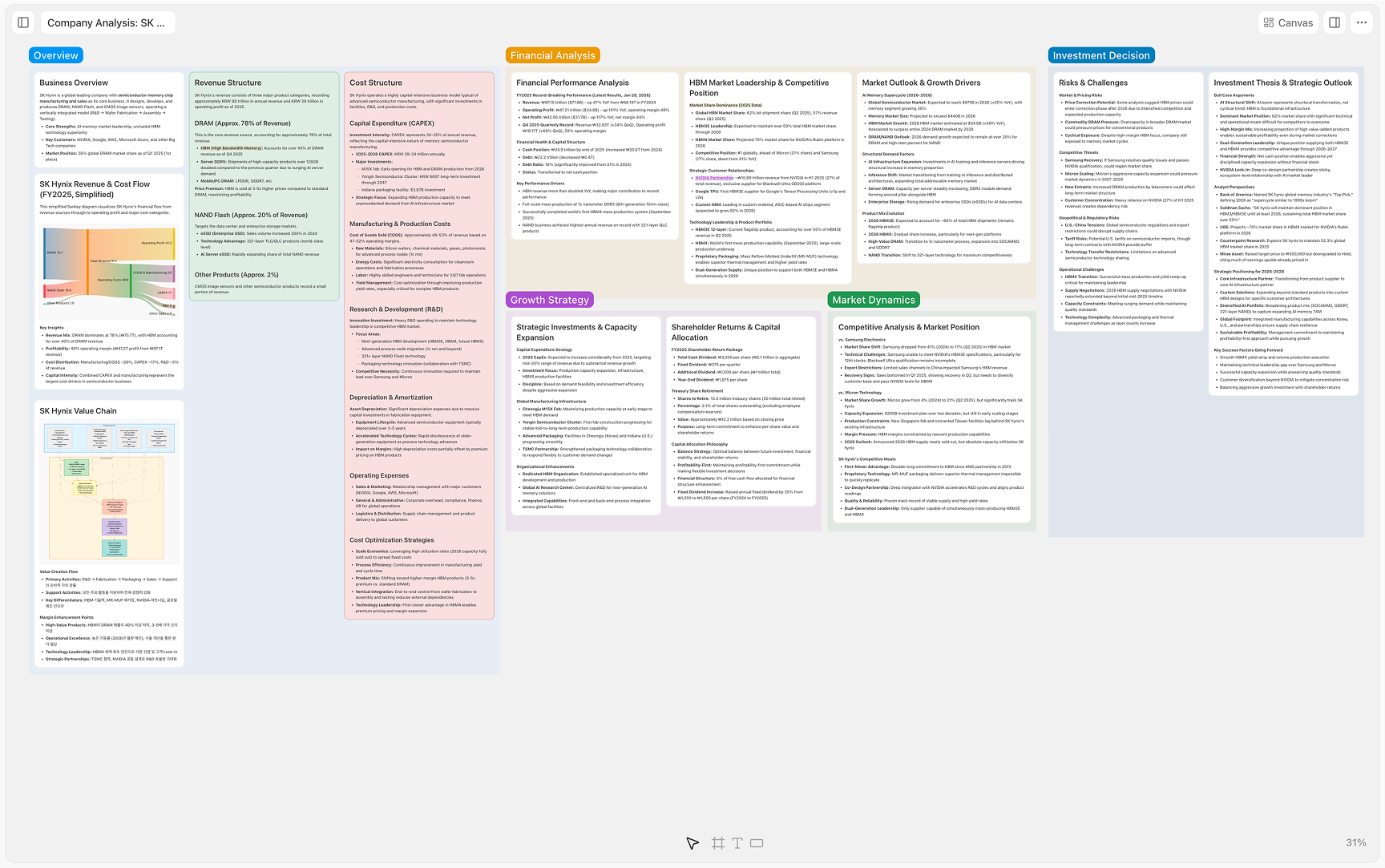
セクションを作成してコンテンツをカテゴリ別に整理できます。Shellが長くなりすぎた時や、階層を深くせずに分類したい時に活用してください。
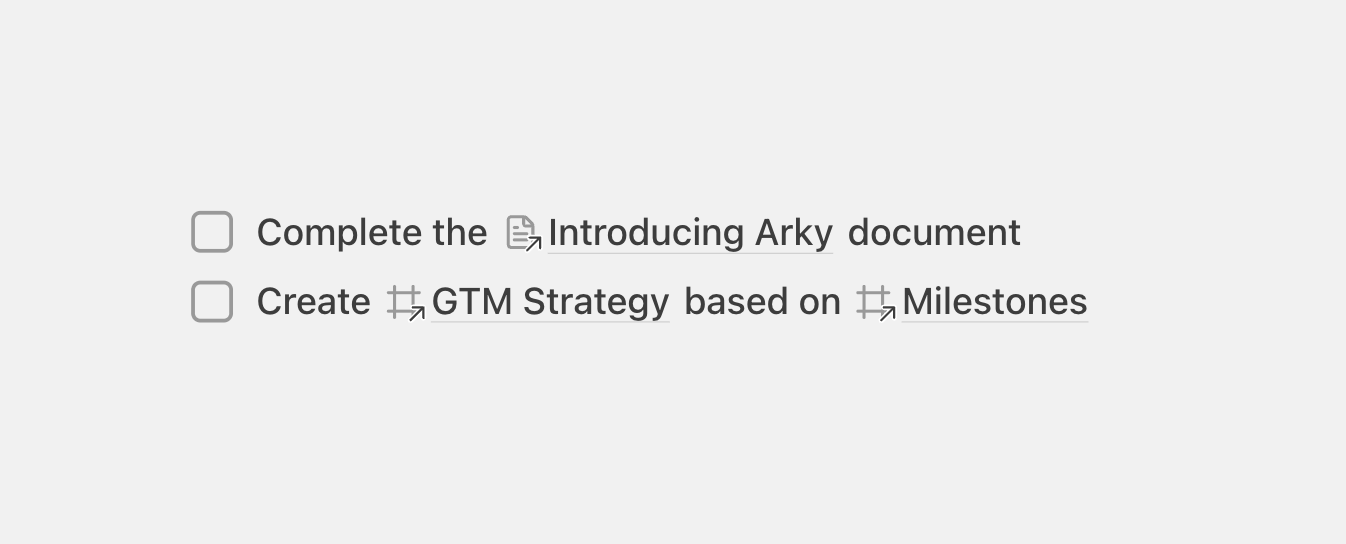
@キーで他のプロジェクトやShellをメンションできます。外部リンクを貼り付けるとインラインブロックとして表示されます。参照されたコンテンツは右サイドバーの参照タブでまとめて確認できます。
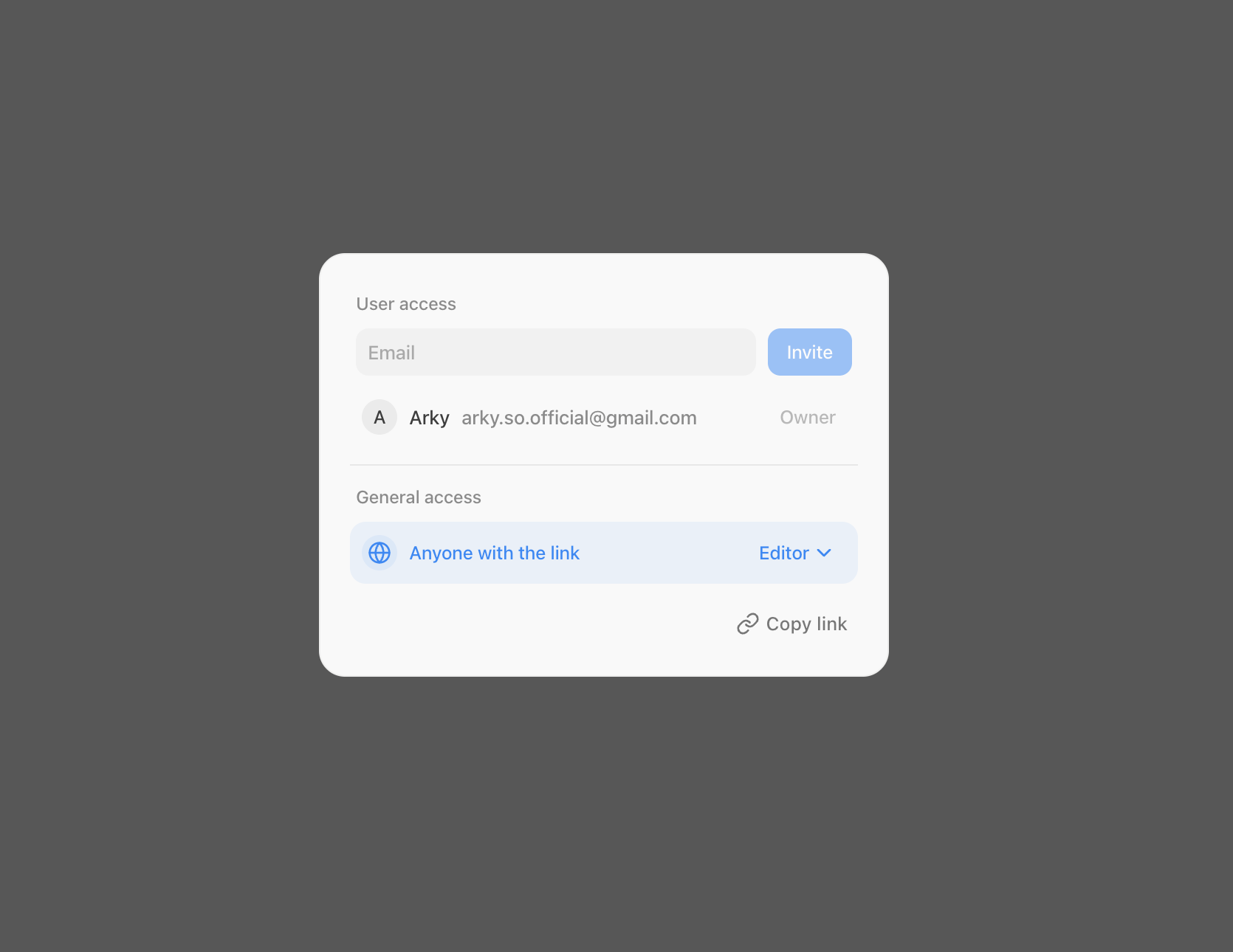
同僚や友人をArkyに招待して、ドキュメントをリアルタイムで共有したり、一緒に作業できます。リンクで共有するか、Arkyユーザーにメール招待を送信できます。共有プロジェクトはワークスペースの共有タブで確認できます。
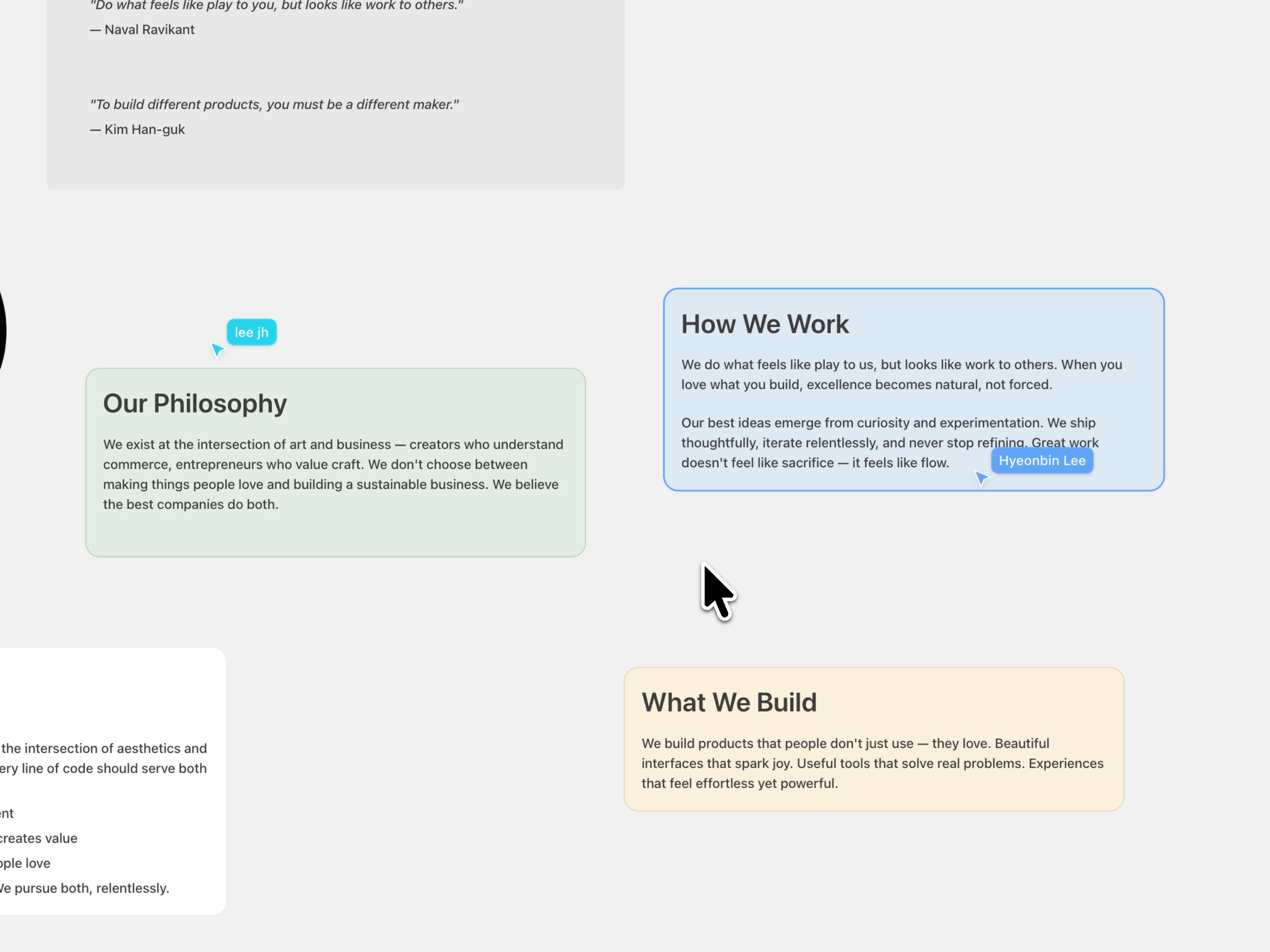
リアルタイム共同編集はAlpha段階のため、同期の遅延や競合が発生する場合があります。フィードバックを基に安定性を改善していきます。
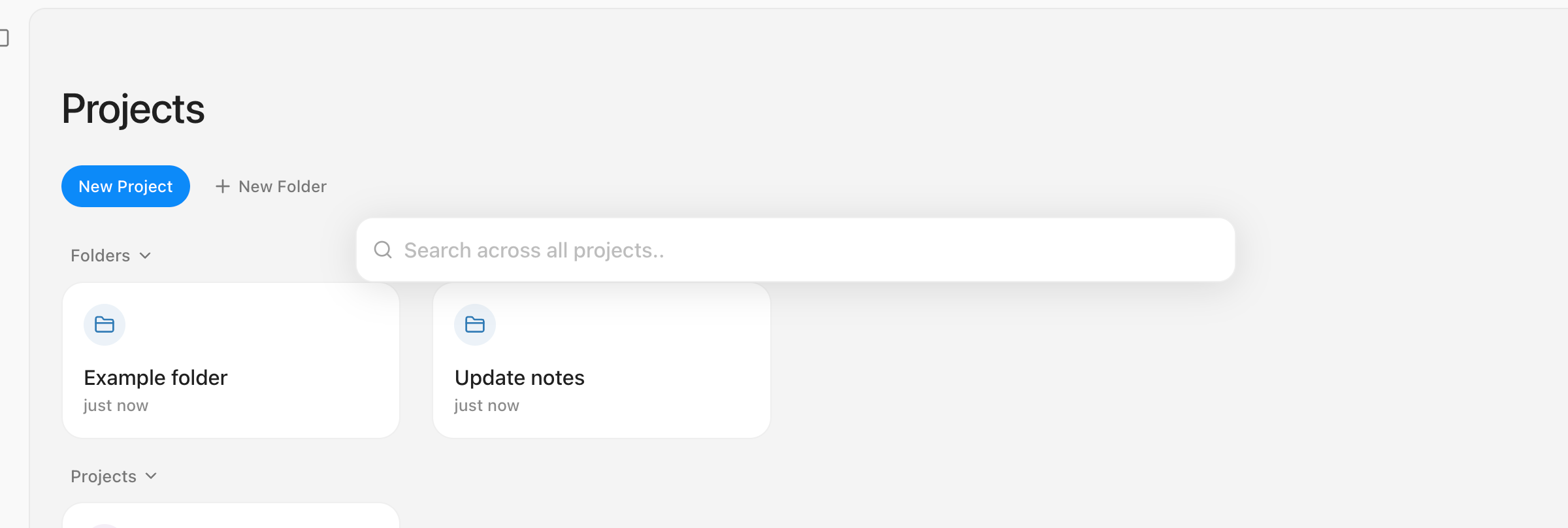
どこへでも瞬時に移動できます。Cmd(Ctrl)+KまたはCmd(Ctrl)+Pを押すだけで、他のプロジェクトや特定のコンテンツをいつでも簡単に検索できます。
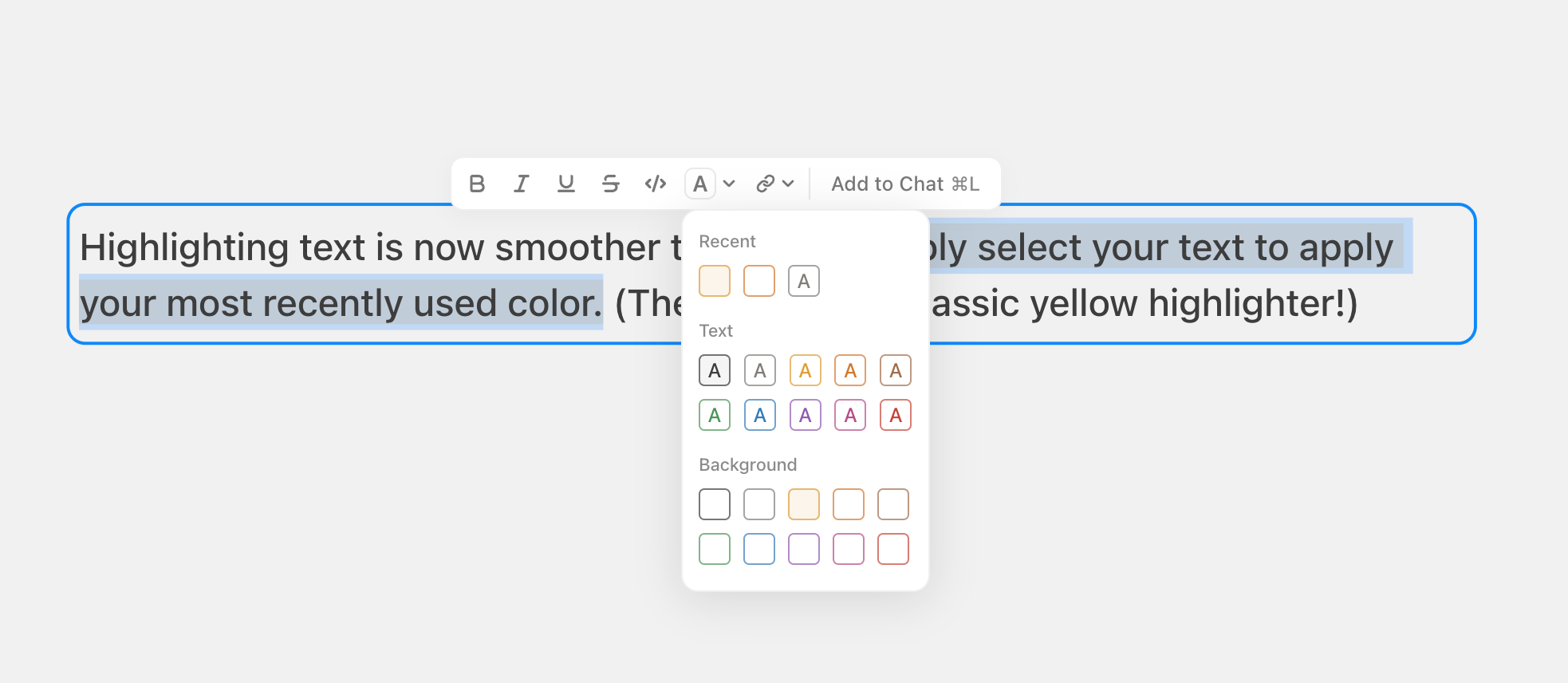
テキストのハイライトがこれまで以上にスムーズになりました。テキストを選択してCmd+Shift+Hを押すだけで、最近使用したカラーを即座に適用できます(デフォルトはクラシックな黄色のハイライトです!)
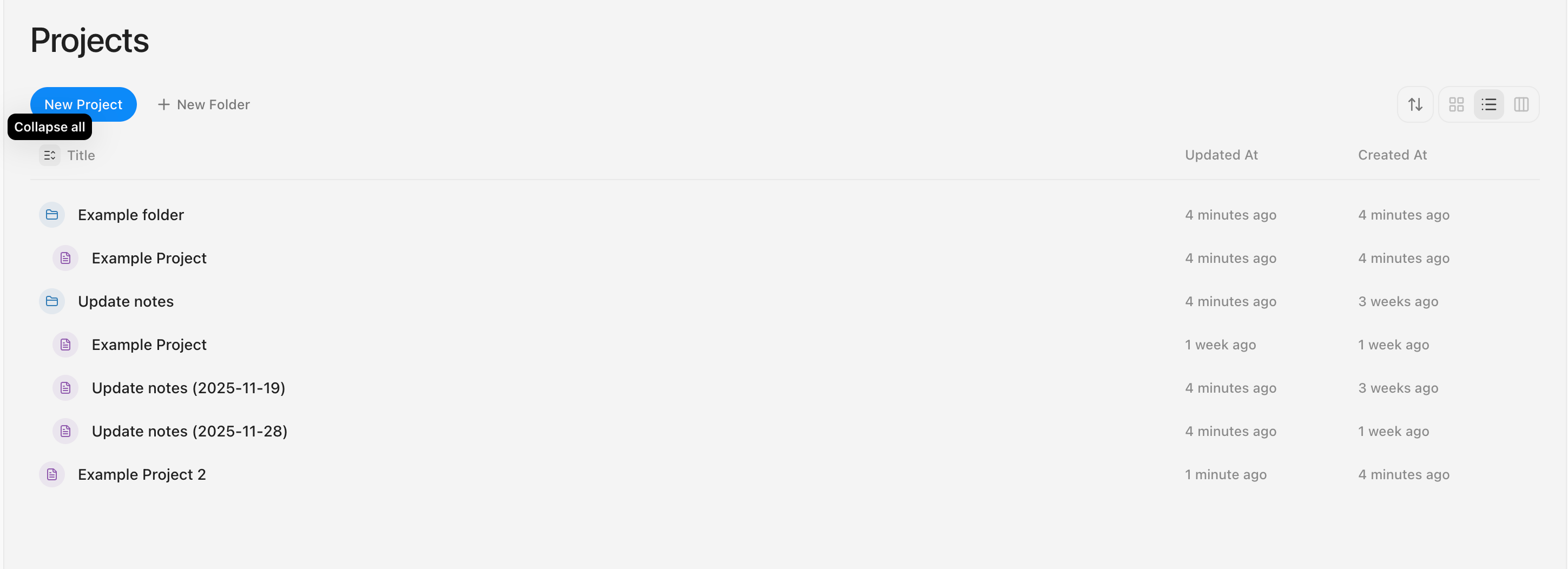
リストビューからすべてのサブ項目を直接表示できるようになりました。
フォルダアイコンをクリックして特定のフォルダを展開するか、タイトルの横にあるボタンを使ってすべての項目を一括で展開・折りたたみできます。
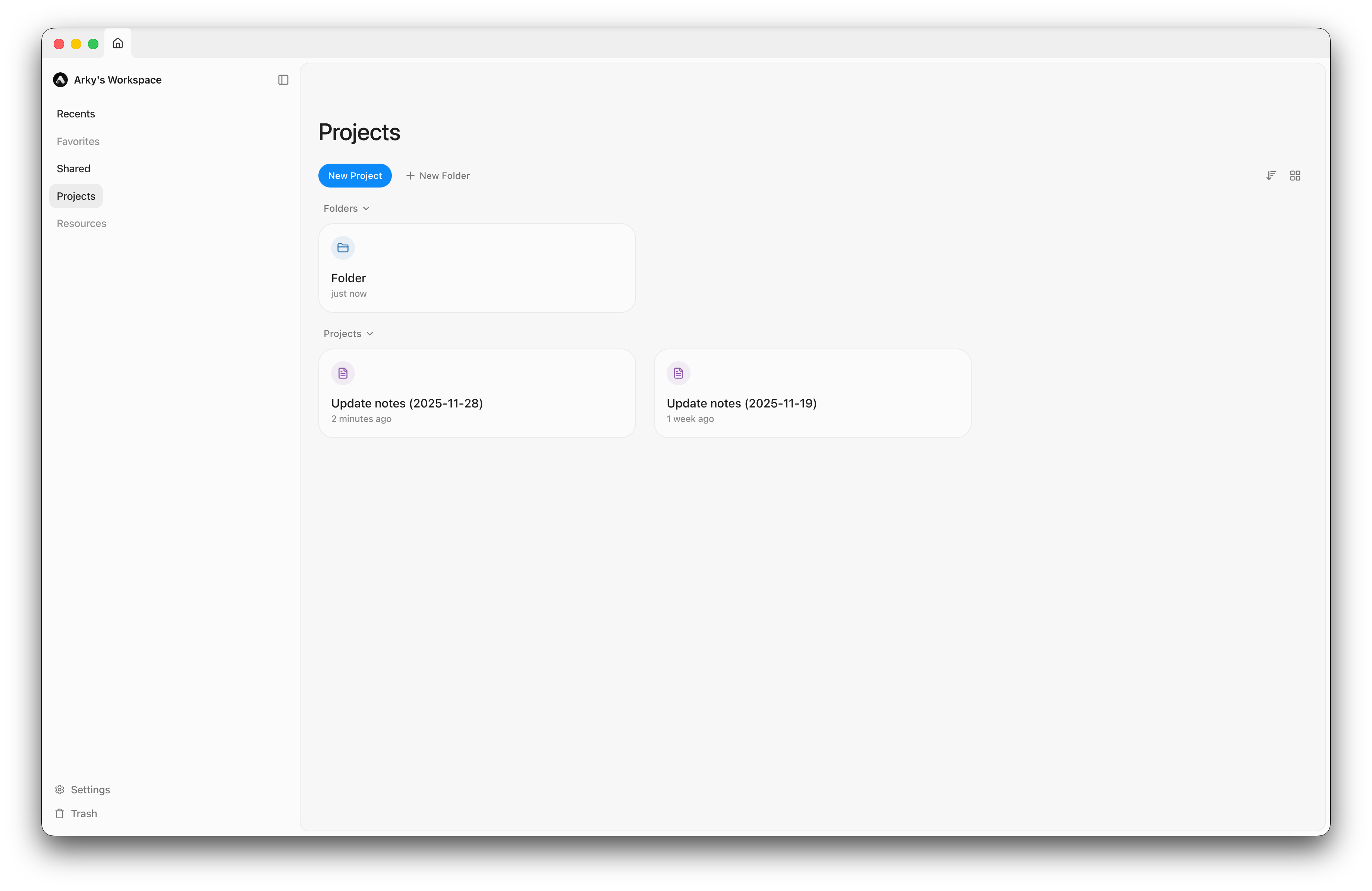
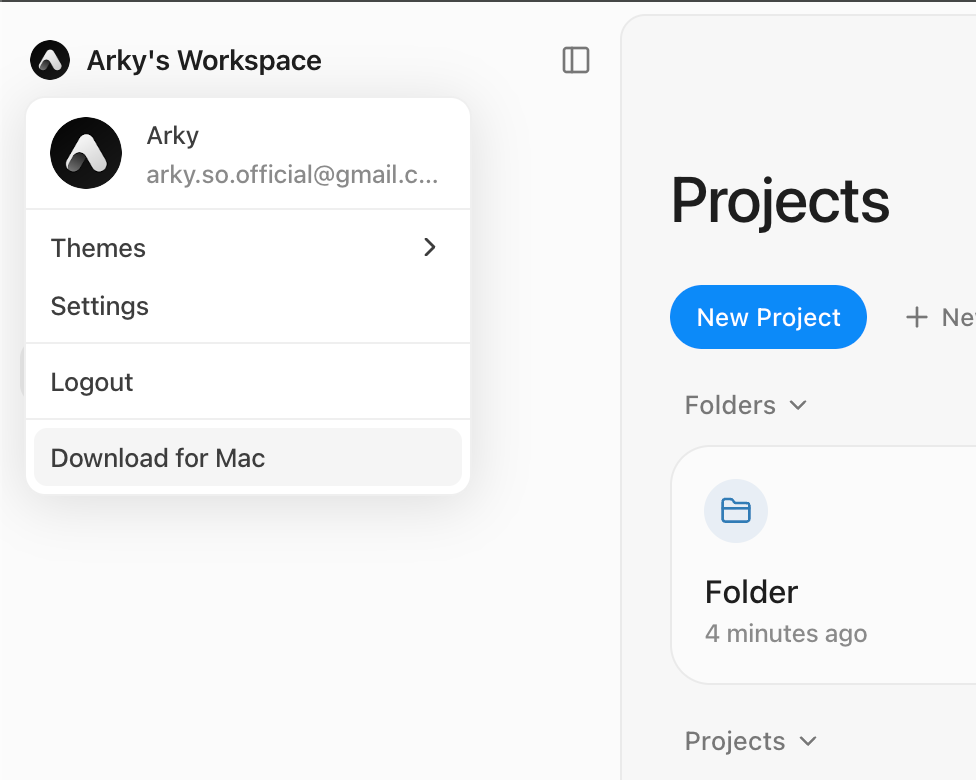
今すぐアプリをダウンロードして、より速く快適なArky体験をお楽しみください!
左上のボタンまたは上記リンクからダウンロードできます。
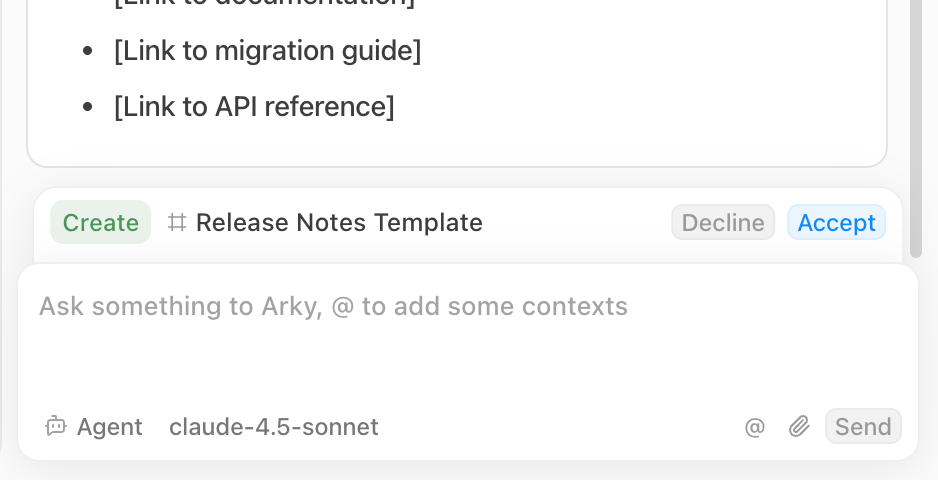
Gemini 2.5 Flashのサポートを終了します。
代わりにGPT 5.1 Instantをお試しください!より速く、より高品質な回答が得られます。
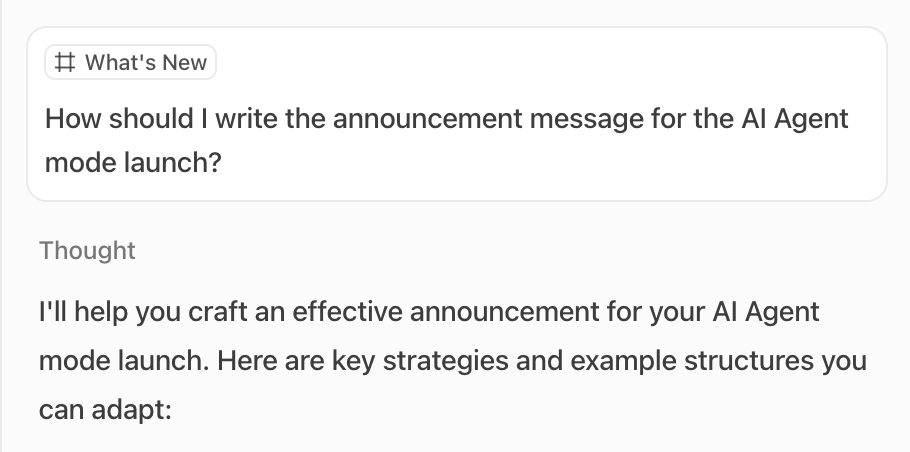
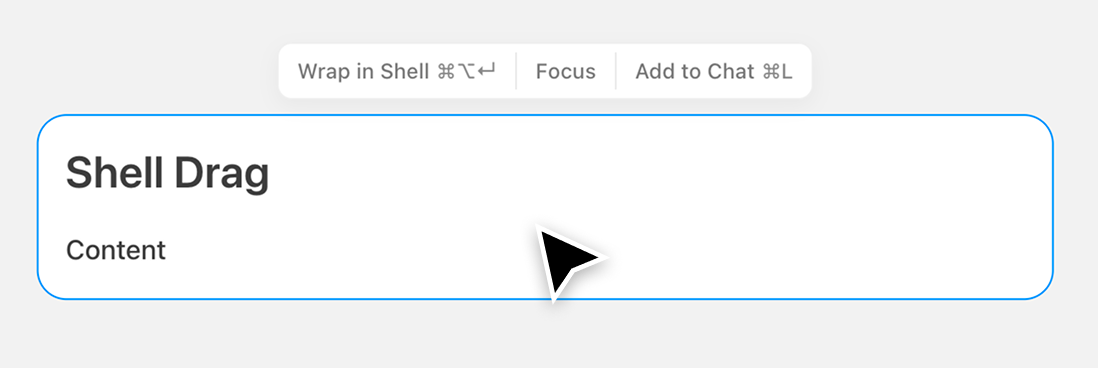
キャンバスでシェルをドラッグすると子コンテンツが意図せず切り離されてしまうというフィードバックをいただいていました。
シェルをドラッグしても、ネストされたすべてのコンテンツが保持されるようになり、キャンバスの整理がずっと簡単になりました。
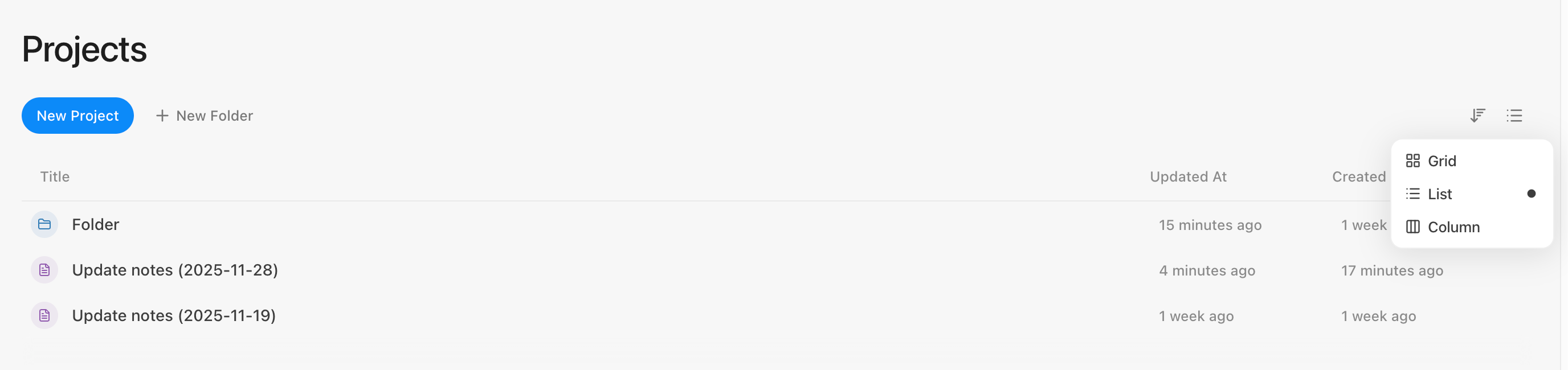
Shift+スクロールによるキャンバスの横スクロールに対応しました。より高性能なAIモデル、GPT-5.1とGemini 3(プレビュー)が使えるようになりました。


みなさん、こんにちは!
Arkyの最新情報をお届けする公式チェンジログを開始しました。
Arkyにサインアップしていただいた方には、メールでアップデートをお届けします。いつでも配信停止が可能です。
現在はクローズドベータ中ですが、目標とする品質に達した段階でオープンベータに移行する予定です。今年後半から来年初頭になりそうです。
Arkyをご利用いただき、ありがとうございます。
Arky ミンソより